Quality Events and the Curator queue
The quality stream, the Curator Inbox and topic muting, and the per-agent Feedback Review workflow where a prompt change is approved and applied.
Quality Events and the Curator queue
Reviewing what your team teaches covers handling a correction where it was left and undoing one that went live. This guide covers the two dedicated surfaces underneath that: the Quality Events stream, where every quality signal in the workspace lands, and the per-agent Feedback Review page, where a proposed prompt change is actually approved and applied.
You need these two when you are working the whole queue rather than one correction someone told you about — and whenever the answer to "why did this agent change?" has to be traceable.
What you'll need
quality:events:readto open Quality Events at all. The Manager, Member and Viewer role templates all include it — but a workspace created before this permission existed may not have it on those roles, because default roles are only created once and are never rewritten afterwards. If a colleague reports a full-page "You don't have access to this page" here, do not assume the feature is off: check the role first. See Turning training on and managing access.quality:events:manageto promote an event, dismiss one from the distiller queue, mute a topic, resolve someone else's thread, or change the sharing setting. Without it the page is fully readable and those controls are simply absent.- Agent Feedback & Training must be switched on for your workspace. A workspace admin does this under Tenant Settings → Agents & AI → Agent Feedback & Training — one checkbox, effective immediately.
- Applying a prompt edit changes an agent, so you also need whatever permission that agent's own configuration requires.
The Quality Events stream
Agents → Workflows → Quality Events
Where is that menu? Navigation is the bar across the top of the window, not a sidebar. The Agents menu opens a wide panel split into columns with grey headings — Quality Events sits under Workflows, two entries above Train the AI.
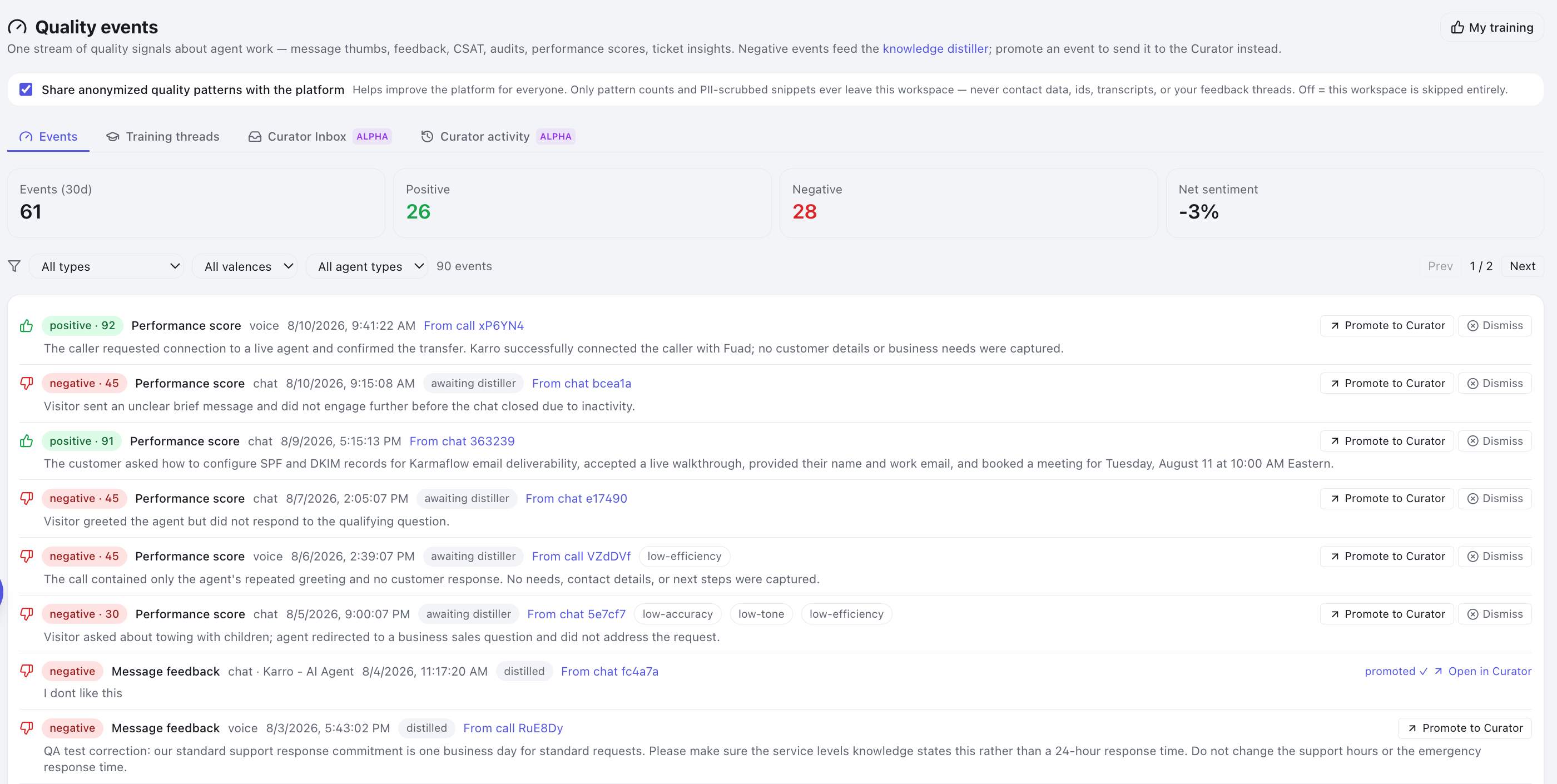
The page opens on the Events tab with four counters across the top:
| Counter | Shows |
|---|---|
| **Events (nd)** | Total quality events in the window |
| Positive | Events judged positive |
| Negative | Events judged negative |
| Net sentiment | Positive minus negative, as a percentage of the total |
A link to My training sits in the header — that is the same Train the AI page everyone has, one click away, so you can check your own corrections without navigating back out.
What lands in the stream
The stream is not just training corrections. Every event carries a type label:
| Label | Where it comes from |
|---|---|
| Message feedback | A correction or 👍/👎 left on a single agent message |
| Interaction feedback | Feedback on a conversation as a whole |
| CSAT | A customer satisfaction response |
| Session audit | An automated audit of a session |
| Performance score | A scored agent performance evaluation |
| Ticket insight | An insight distilled from a helpdesk ticket |
| Judged not durable | A verdict that material was one-off or episodic — deliberately not saved as knowledge. Neutral and terminal; it is never distilled |
Each row shows the agent type and name, when it occurred, up to four category chips, and the text itself.
Filtering
Three dropdowns narrow the list, each defaulting to everything:
- All types — filter to one event type from the table above.
- All valences — Positive, Neutral or Negative.
- All agent types — one channel's agents only.
Working the negative events of one agent type is the usual triage pass.
The distiller chip
Negative events carry an extra chip showing where they stand with the knowledge distiller:
| Chip | Means |
|---|---|
| awaiting distiller | Queued to be considered for knowledge |
| distilled | Already processed |
| dismissed | Removed from the queue by a reviewer |
Promoting an event to the Curator
Feedback about how an agent behaves is handled by the Curator, and it has to
get there. On any event row, with quality:events:manage:
- Click Promote to Curator. This creates an Agent Feedback item for the Curator pipeline.
- The button is replaced by promoted ✓ — and, for chat, SMS, voice, task and email agents, an Open in Curator link.
- Click Open in Curator to jump straight to that agent's Feedback Review queue, where the promoted item is waiting.
To take a negative event out of the knowledge distiller's queue instead, click Dismiss. It stays in the stream; it just stops being a knowledge candidate.
Sharing anonymised patterns
Above the tabs is a checkbox: Share anonymized quality patterns with the platform. The sentence beside it states the boundary exactly — only pattern counts and PII-scrubbed snippets ever leave the workspace, never contact data, ids, transcripts, or feedback threads; turned off, the workspace is skipped entirely.
Changing it needs quality:events:manage. Everyone else sees it read-only,
with a note that only a workspace manager can change it.
Training threads — what your team has taught
Agents → Workflows → Quality Events → Training threads
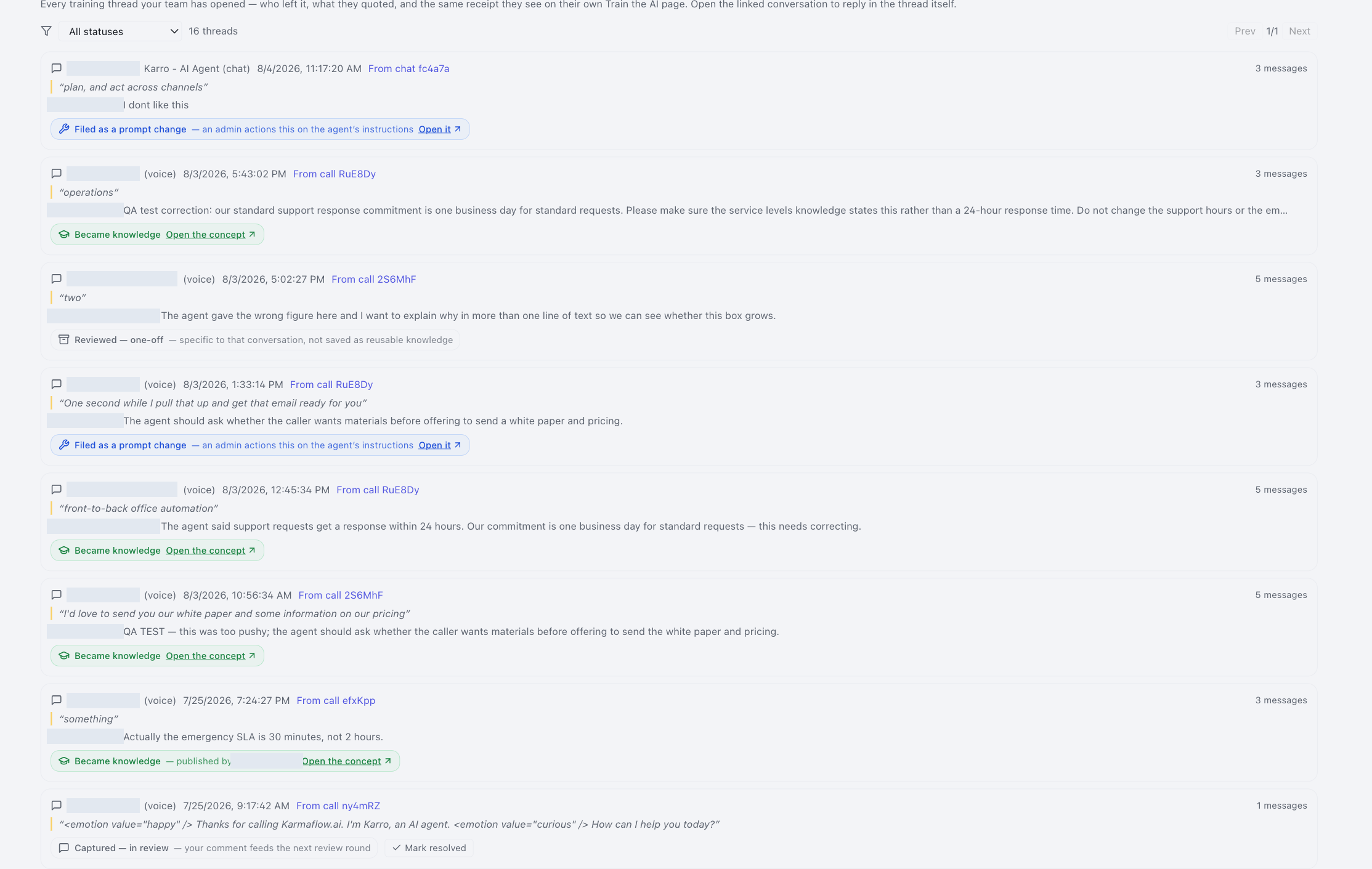
Every training thread anyone in the workspace has opened, newest first — who left it, the words they quoted, their correction, and the same receipt the submitter sees on their own Train the AI page. This is the tab to open when someone says "I left a correction somewhere" — you no longer need to ask which conversation.
- Filter by status: All statuses, Open, Resolved, or Became knowledge.
- Each row links back to the conversation it was left on. Replying in the thread itself happens there, with the transcript in view — this tab is the ledger, not the workbench.
- Rows are limited to agent types you can read (a thread quotes transcript text, so listing it is reading that agent's conversation). A colleague's thread on an agent type outside your permissions will not appear.
- With
quality:events:manage, open rows carry Mark resolved — closing a thread that needs no knowledge or prompt change — and resolved rows carry Reopen. Threads that became knowledge are terminal and have no buttons.
Submitters can also close their own open threads from Train the AI, with the same pair of buttons.
The Curator Inbox
Agents → Workflows → Quality Events → Curator Inbox
This tab and Curator activity are marked alpha.
The inbox lists Curator suggestions — not raw submissions. An item appears only after the feedback has been analysed. If the inbox is empty it reads "Nothing waiting. Curator suggestions appear here once feedback is analyzed — from any agent you can see," which is the expected state on a quiet workspace, not a fault.
Each row carries a status chip:
| Chip | Means |
|---|---|
| awaiting approval | Nobody has accepted or rejected the feedback yet |
| awaiting apply | Approved, but the proposed edit has not been applied |
| rejected | Judged not actionable; still counts as quality signal |
| applied | The edit is in the agent's prompt |
Rows also show how long the item has been waiting ("3d waiting"), the Curator's summary, any risk notes in amber, category chips, and the original feedback quoted.

Topics — failure clusters × queued fixes
Above the inbox sits a Topics panel that pairs where agents are actually failing against what is queued to fix it. Each topic can show:
- n negative · n grounded — how many failures happened when the brain was consulted. A grounded failure points at a prompt or behaviour problem rather than missing knowledge.
- n queued fixes — Curator suggestions waiting on this topic.
- brain fix drafted — a knowledge-side fix has been drafted for it.
- nothing queued — agents keep failing here and nothing is queued. This is the one that wants action: analyse recent feedback on the topic, or acquire knowledge if it is genuinely a gap.
Muting a topic
When a topic keeps resurfacing and you have decided not to act on it, mute it
rather than repeatedly rejecting items. With quality:events:manage:
- Click Mute topic on the row.
- Pick how long — 7, 30 or 90 days, or indefinitely (until unmuted). There is deliberately no default; you have to choose, so no mute is set by accident.
- Optionally give a reason. It is shown in the muted-topics list.
- Confirm.
Muting stops the Curator analysing new feedback on that topic for that agent. Items already in the queue stay until they are decided — they show a topic muted chip so you know why nothing new is arriving behind them.
Muted topics collapse under a n muted topics toggle. Expand the muted-topics list to see every mute — active and lapsed — with who set it, why, when it lapses, and an Unmute button.
Curator activity — the audit trail
Agents → Workflows → Quality Events → Curator activity
Every approved, rejected and applied item, newest decision first, with who decided it and the original feedback attached. This is the surface that makes "why did this agent change?" answerable in one click.
Filter it by agent type and by target. On a workspace where nothing has been decided yet it reads "No decided items yet — approvals, rejections, and applies will show up here."
Feedback Review — approving and applying a prompt change
This is the per-agent page where a promoted item is actually worked. It is not in the menus — you always arrive from something. There are three ways in:
- From the agent. Open the agent — a voice campaign, chat agent, SMS agent, email strategy or task agent — and click Feedback in its header.
- From an event. Click Open in Curator on a promoted Quality Events row.
- From the Curator Inbox. The agent chip at the start of every inbox row is a link, and it opens the queue with that item already selected. This is the quickest route when you are working the inbox top to bottom.
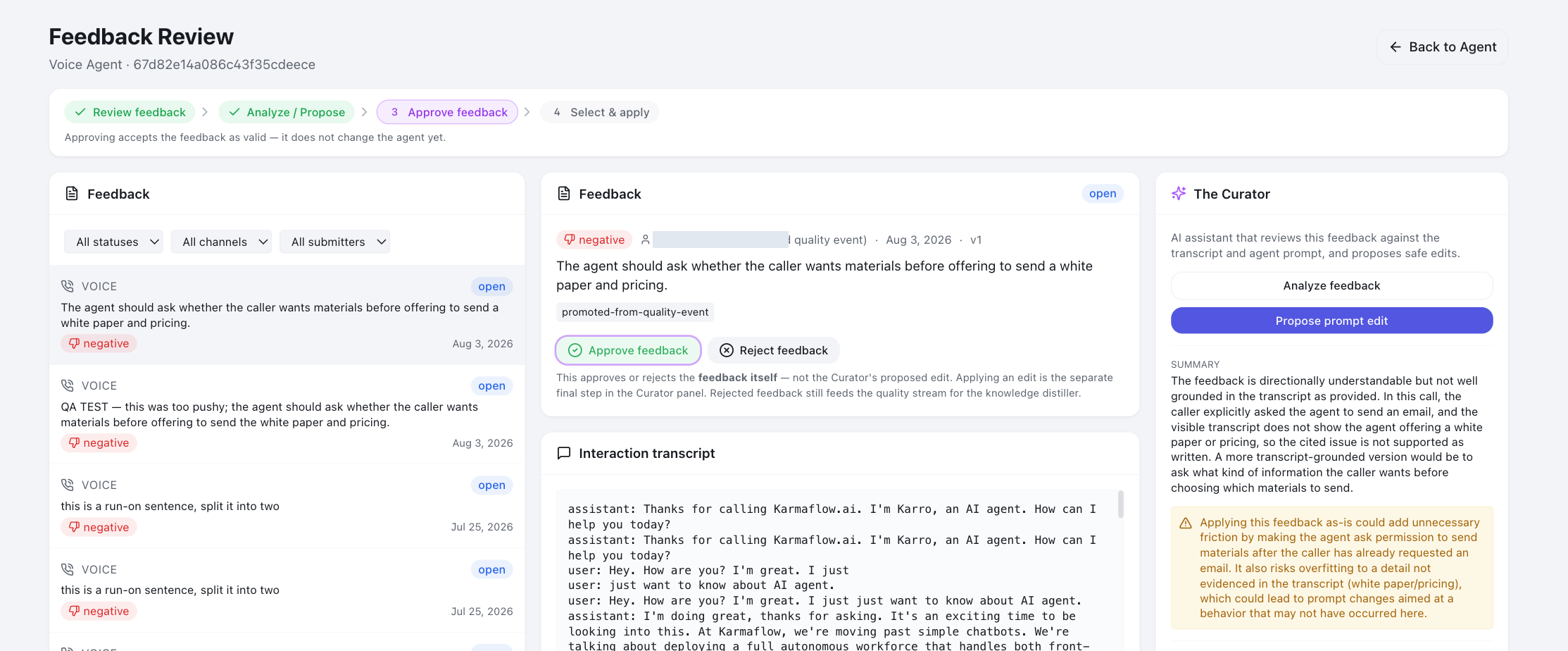
The page is headed Feedback Review and shows a four-step stepper so you can see where an item is:
flowchart LR
A["Review feedback<br/><small>read it against the transcript<br/>and current prompt</small>"] --> B["Analyze / Propose<br/><small>ask the Curator to analyze,<br/>or to propose an edit</small>"]
B --> C["Approve feedback<br/><small>accept the feedback as valid —<br/>the agent does not change yet</small>"]
C --> D["Select & apply<br/><small>tick the changes you accept,<br/>then write them to the agent</small>"]
C -.->|"not actionable"| E["Rejected<br/><small>nothing is applied; it still<br/>feeds the quality stream</small>"]
Step 1 — Read it in context
Select an item in the list. You get the feedback alongside the transcript it came from and the agent's current prompt, which is the only way to judge whether the complaint is fair.
Step 2 — Ask the Curator
In The Curator panel on the right — described in the page as an "AI assistant that reviews this feedback against the transcript and agent prompt, and proposes safe edits" — you have two buttons:
- Analyze feedback — the Curator reads it and writes up what it found.
- Propose prompt edit — the Curator drafts the specific edit it would make.
While it works, the panel shows Thinking….
The Curator is allowed to disagree, and that is a feature. In our own testing it declined to act on a style correction, saying it was not well grounded in the transcript and that applying it could overfit to a detail not evidenced — and it proposed no changes. Read its reasoning before overriding it. An AI that refuses a weakly supported instruction is protecting your agents from being tuned by a single bad day.
Where the Curator has drafted a knowledge-side fix instead, the chip on the item tells you where that went: auto-published, in Approvals queue, no change needed, or draft failed.
Step 3 — Approve or reject the feedback
Two buttons: Approve feedback and Reject feedback.
Read what these mean, because it is the step people misread. They approve or reject the feedback itself — not the Curator's proposed edit. Approving says the feedback is valid and worth acting on; the agent does not change at this step. Applying an edit is the separate final step. Rejected feedback is kept and still feeds the quality stream for the knowledge distiller.
Step 4 — Select and apply
Tick the proposed changes you accept, then click Apply selected changes. This writes them into the agent's prompt, with before/after revisions recorded.
If the button is disabled, hover it: the tooltip lists exactly what is blocking the apply ("To apply: …"), and the same blockers are listed underneath. Clear them and the button enables.
Troubleshooting
The Feedback Review page says "Agent Feedback is not enabled". Agent Feedback & Training is switched off for your workspace. A workspace admin turns it on under Tenant Settings → Agents & AI → Agent Feedback & Training — the page links there directly.
Quality Events is missing from my Agents menu.
Your role does not carry quality:events:read. The menu is permission-filtered,
so a missing entry is almost always a permission rather than a disabled
feature. Ask a workspace admin.
I can see Quality Events but there is no Promote to Curator button.
Promoting, dismissing, muting and the sharing checkbox all need
quality:events:manage. Read access alone shows the stream without the
controls.
Someone left a correction but nothing is in the Curator Inbox. The inbox lists analysed suggestions only. Either the feedback has not been analysed yet, or it was routed to knowledge rather than to the prompt plane — check the thread on the conversation itself, or the Tenant Brain Approvals queue. Only feedback about how an agent behaves reaches the Curator.
A topic stopped producing new items and I did not expect that. Check whether it is muted. Expand the muted-topics list on the Curator Inbox — it shows who muted it, why, and when the mute lapses, with an Unmute button.
I approved the feedback but the agent still behaves the same way. Approving accepts the feedback; it does not change the agent. Complete Select & apply. The item's chip reads awaiting apply until you do.
An item shows "topic muted" but is still in my queue. That is intended. Muting stops new feedback on the topic being analysed; items already queued stay until you decide them.
Next steps
- Reviewing what your team teaches — publishing, undoing, and setting how much agents may publish on their own.
- Brain Browser walkthrough — the Approvals queue and version history on the knowledge side.
Related
- Agents that learn from your team — how the whole loop fits together.
- Training your AI agents — the hub and role model.
- What happened to your feedback — the receipts your team sees for the work you do here.