Workiz
Connect Workiz so agents can look up field-service jobs and leads, check availability, and book appointments.
Workiz Integration
Connect your Workiz account so Karmaflow.ai agents can look up jobs and leads, check who is free, and book appointments for callers — on the phone, in chat, over SMS, or from a task agent.
Workiz has no booking or availability API of its own, so Karmaflow.ai builds that capability itself from three channels you connect on the Workiz side. That makes setup a short checklist rather than a single "connect" button, and the connector is not finished when credentials verify — the steps after it are what make booking safe.
How It Works
Karmaflow.ai keeps a local mirror of your Workiz jobs, leads and schedule, and answers from it. Three channels keep that mirror true, and each one carries something the others cannot:
flowchart LR
  A[Workiz Automations<br/>webhooks] -->|"changes as they happen<br/>invoices + estimates"| M[(Karmaflow.ai mirror)]
  B[Calendar Sync feed<br/>iCal] -->|"future schedule<br/>tasks + events"| M
  C[Developer API<br/>REST, on demand] -->|"lookups + writes<br/>at the moment an agent answers"| M
  M --> D[Agents: look up, check availability, book]
- Webhooks tell Karmaflow.ai about a change the moment it happens. On the v1 API they are also the only source of invoices and estimates. On v2, invoices are read over the API with their history, so only estimates still need webhooks.
- The Calendar Sync feed is where tasks and events appear, and both occupy a technician's calendar. On v2 you can instead let Workiz compute availability itself (step 4), which counts tasks and events without the feed.
- The Developer API handles lookups and writes on demand. Agents refresh what they are about to reason about, so answers are current without anything polling on a timer.
What You'll Need
- Tenant administrator access in Karmaflow.ai. Every screen below is tenant-admin only.
- Workiz API access. Workiz lists "Open API" on its Ultimate plan, and the Developer API is enabled from your Workiz Feature Center. Without it Workiz issues no API token and the integration cannot be connected at all — so it is worth confirming your Workiz plan before starting. Your Workiz plan also caps how many automation rules you can create, which limits how many of the webhook triggers in step 2 you can use.
- Administrator access in Workiz, to create automations and enable Calendar Sync.
Open Settings in the top bar — the gear icon, which shows the word Settings beside it on wide screens — then the Integrations group, then Workiz. You can also go straight to /settings/workiz. Every step below is a numbered section on that one page, and each has a status chip showing where it stands.
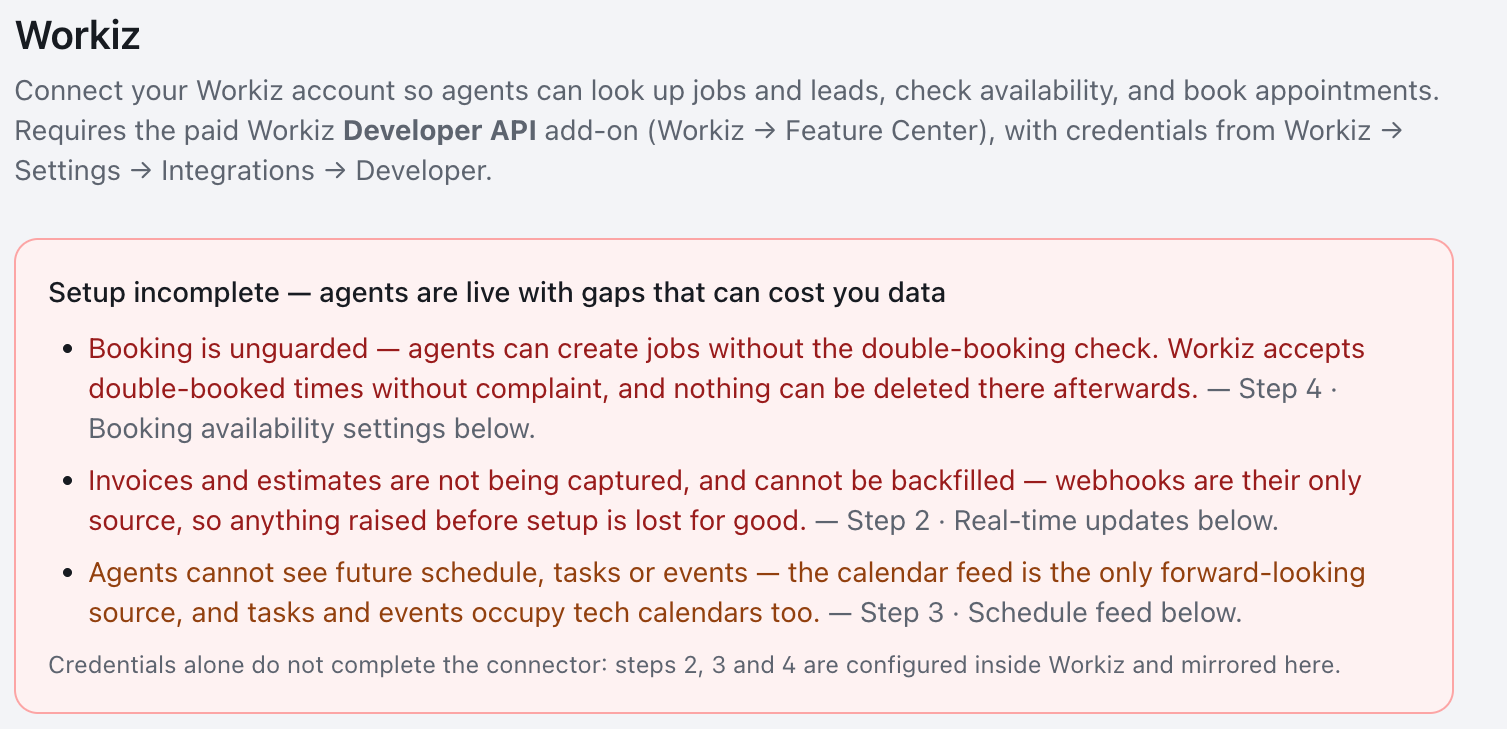
A banner at the top of the page states what is still missing and what it costs you, so an incomplete setup cannot quietly look finished. It disappears once every step is done.
Step 1 · Connect your credentials
In Workiz, go to Settings → Integrations → Developer and copy your API token and auth secret.
- In Karmaflow.ai, paste both values into section 1 of the Workiz page.
- Select Save & verify.
Karmaflow.ai verifies them immediately with a live call to Workiz, so a wrong value fails here rather than in front of a customer. On success the chip reads Connected with the API version in use and the number of team members found.
Credentials are stored encrypted and are never shown back to you — the fields stay blank afterwards, and leaving them blank on a later save keeps the stored values.
Choose the API version: v1 or v2
Workiz offers two APIs. v1 uses the token and secret above. v2 uses a named API key with its own permissions, per area (jobs, leads, users, and so on), and a key can expire or be rotated without touching anything else. Both work with every agent tool; you choose which one this workspace uses, and you can change your mind at any time.
To create a v2 key, in Workiz open the profile icon → Settings → Integrations → Developer, select the v2 tab, then Create New API Key. Give it a name, an expiration, and permissions. Copy the key before leaving the page — Workiz shows it only once.
For agents to book, the key must be able to read Jobs, Users, Time off, Job Types and Search, and write Jobs (and Leads, if your agents create leads). Read access to the rest (clients, tags, invoices, estimates and so on) is optional.
- Under API version in section 1, paste the key into v2 API key.
- Select Save & verify v2 key. Karmaflow.ai checks the key live and shows what it can read, area by area. Areas marked needed must say Can read before you can switch. Write permission cannot be checked without writing, so it shows the first time an agent writes.
- If you also have v1 credentials saved, select Compare v1 and v2 (read-only). It reads the same recent jobs and your team through both APIs and shows any field that differs, with up to three job numbers (and, except for customer details, the value each API gave), so you can open the job in Workiz and see which is right. v2 returns more jobs per page than v1 (up to 300 against 100), so the job counts differ; the fields are compared on the jobs both returned. Nothing is written to Workiz.
- Select Switch to v2 and confirm.
Switching back is one click. Your v1 token and secret stay saved when you switch, so Switch back to v1 returns the workspace to v1 immediately. Every switch is listed under Version history and in your audit log.
While you are on v2 with v1 credentials still saved, Karmaflow.ai answers from v1 if v2 refuses a request — for example, because the key lacks a permission. A read is always retried this way. A write is retried only when Workiz refused it outright, never when the outcome is unknown, so a booking is never written twice. Each time v1 answers instead, it is counted under API version and listed in Recent problems (section 5), so you can see when v2 is not doing the work. A request both APIs refuse (for example, a cancellation without the reason your account requires) is not counted: v1 did not answer it either.
A workspace can also run on v2 alone, with no v1 credentials: save a v2 key and it connects. Switching back to v1 then needs a v1 token and secret first.
Keep the v2 key from expiring unnoticed
Workiz does not let other apps read a key's expiration date, so Karmaflow.ai asks for it. When you save your first key, fill in Expires on with the date Workiz shows beside it. Once a key is saved, the date lives under Key expiry, where you can add or change it without pasting the key again. Saving a replacement key clears the old key's date, so set the new one there after saving. While the workspace uses v2, people with permission to manage settings are notified 14 days, 3 days and 1 day before, and on the day itself, and the API version section shows a warning from 14 days out.
If Workiz refuses the key outright — it expired, or someone revoked or deleted it in Workiz — you are notified straight away (at most once a day), and the section shows a red notice. With v1 credentials saved, v1 keeps answering in the meantime; without them, agents cannot reach Workiz until you paste a new key. Pasting a new key and selecting Save & verify v2 key clears the notice.
Step 2 · Turn on real-time updates (webhooks)
Workiz sends changes to Karmaflow.ai through Automations. There is no API to create these for you, so each one is set up by hand once.
In Karmaflow.ai, section 2 shows a Webhook URL and an Auth key, each with a Copy button. Then, in Workiz:
- Go to Automations → Add automation.
- Choose the trigger you want.
- Under do this, choose Post webhook.
- Paste the Webhook URL from Karmaflow.ai.
- Paste the Auth key into the automation's own Auth key field — the dedicated field beside the URL, not into the request body or a header you add yourself. Workiz sends it as an
Authorization: Bearerheader, and Karmaflow.ai rejects a delivery that arrives without it. - Save, and repeat for each trigger.
At minimum, create automations for job created and lead created. Add invoice and estimate triggers if you want financial records to reach Karmaflow.ai — those two are the only way financial data ever reaches us.
A limitation to check as you go: Workiz's own documentation states that status-based automation rules "can only be set to send notifications" and cannot post webhooks. If the Automation Center offers you a webhook action on a status-change trigger, use it. If it does not, that is a Workiz restriction rather than a setup mistake — status changes still reach Karmaflow.ai, just not the moment they happen. On the v2 API, Karmaflow.ai asks Workiz what changed whenever an agent or the Workiz Jobs page is about to read your jobs (at most every two minutes), so a cancellation made in Workiz is there by the next question. On v1, it arrives when an agent next checks availability for that day, or when someone opens that week or that job on the Workiz Jobs page.
The chip in section 2 flips from Waiting for first delivery to Receiving, with a timestamp, once the first automation fires.
Do this early on v1. On the v1 API, webhooks are the only source of invoices and estimates, and there is no way to fetch past ones later. Anything raised in Workiz before these automations exist is never captured. On v2, Karmaflow.ai reads invoices over the API, including the last 35 days, when your v2 key has Invoices read permission; estimates still arrive only through webhooks.
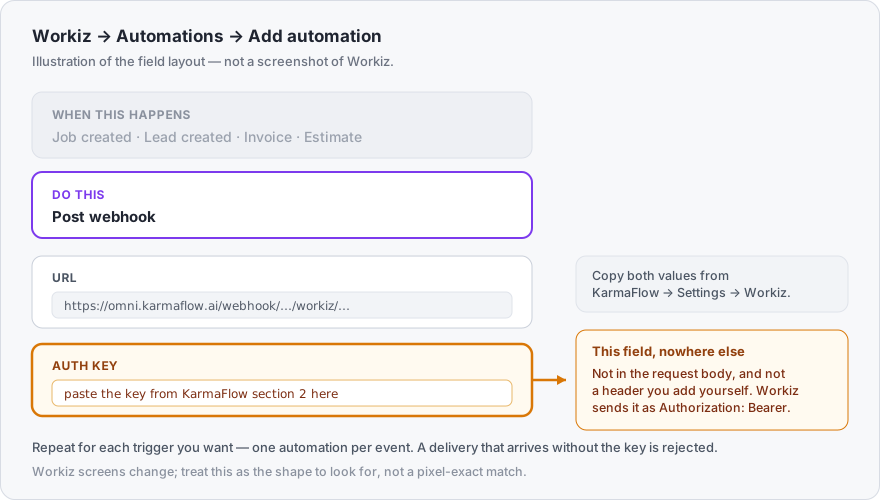
The diagram above shows the shape to look for rather than a pixel-exact copy of Workiz's screen, which changes over time.
Step 3 · Connect the schedule feed (Calendar Sync)
- In Workiz, go to Settings → Integrations → Calendar sync.
- Enable the add-on and choose All users — a per-user feed hides other technicians' work, which makes availability wrong.
- Copy the API URL.
- Paste it into section 3 in Karmaflow.ai and select Save feed.
The chip reads Syncing with the number of entries found.
Without this feed, agents cannot see tasks or events — even though those occupy technician calendars — so availability answers are incomplete. On v2, switching on Workiz's own availability (step 4) covers tasks and events instead, and this feed becomes optional.
Step 4 · Mirror your booking availability settings
Workiz offers no API to read your scheduling settings, so Karmaflow.ai cannot copy them for you. Mirror them here from Workiz's Online booking → Availability screen.
In section 4, set:
| Field | What it means |
|---|---|
| Timezone (IANA) | Your business timezone, e.g. America/Toronto. All times agents quote are computed in it. |
| Slot duration (minutes) | The length of a standard booking slot. |
| Advance notice (hours) | How far ahead of now a booking may be made. |
| Availability preference | Based on tech availability, Set number of jobs per slot, or Allow double booking — match whichever Workiz uses. |
| Jobs per slot | Only shown when the preference is Set number of jobs per slot. |
| Business hours | When you open and when you stop working — not when you stop starting jobs. A slot must fit entirely inside the window, so with two-hour slots and an 18:00 close, the last bookable start is 16:00. Set the close to the end of your working day or you will silently lose your last slot every day. Leave a day blank to mark it closed — a blank row shows Closed. |
Select Save scheduling settings. The chip shows when the settings were last confirmed.
This step is what makes booking safe. Workiz accepts a double-booked time without complaint, so Karmaflow.ai's slot check is the only thing preventing one — and that check needs business hours. Until they are set, the chip reads Not configured — booking is unguarded. Because Workiz has no delete, a job booked into a conflict cannot be removed afterwards; it can only be rescheduled or cancelled in Workiz.
Keep these in sync by hand. If you change availability in Workiz, change it here too, or agents will offer times you cannot serve.
On v2: let Workiz compute availability (beta)
On a v2 connection, section 4 has a box: Use Workiz's own availability, marked Beta. When it is ticked, Workiz works out the open times itself, from everything in your account: jobs, leads, tasks, events, time off, each technician's working hours and holidays, and your own Online booking settings. Agents offer those times, and every booking and every move is checked against Workiz's answer just before it is written, so you no longer mirror the settings above or need the calendar feed for the booking check.
- Off by default. Nothing changes for your workspace until you tick it, and you can untick it at any time.
- Beta. Workiz labels this part of its API beta and says it may change without notice. Try it on one workspace first.
- If Workiz cannot answer, Karmaflow.ai uses the settings above instead, and the agent offers those times as provisional. With no settings mirrored, the agent offers no times and says the team will confirm one; a booking made then is written unchecked, and the agent is told to say so.
- Moving a job works as before: the job's own slot counts as free for its move.
- The section's chip reads Workiz computes availability (beta) while it is on, and the readiness banner no longer asks for business hours.
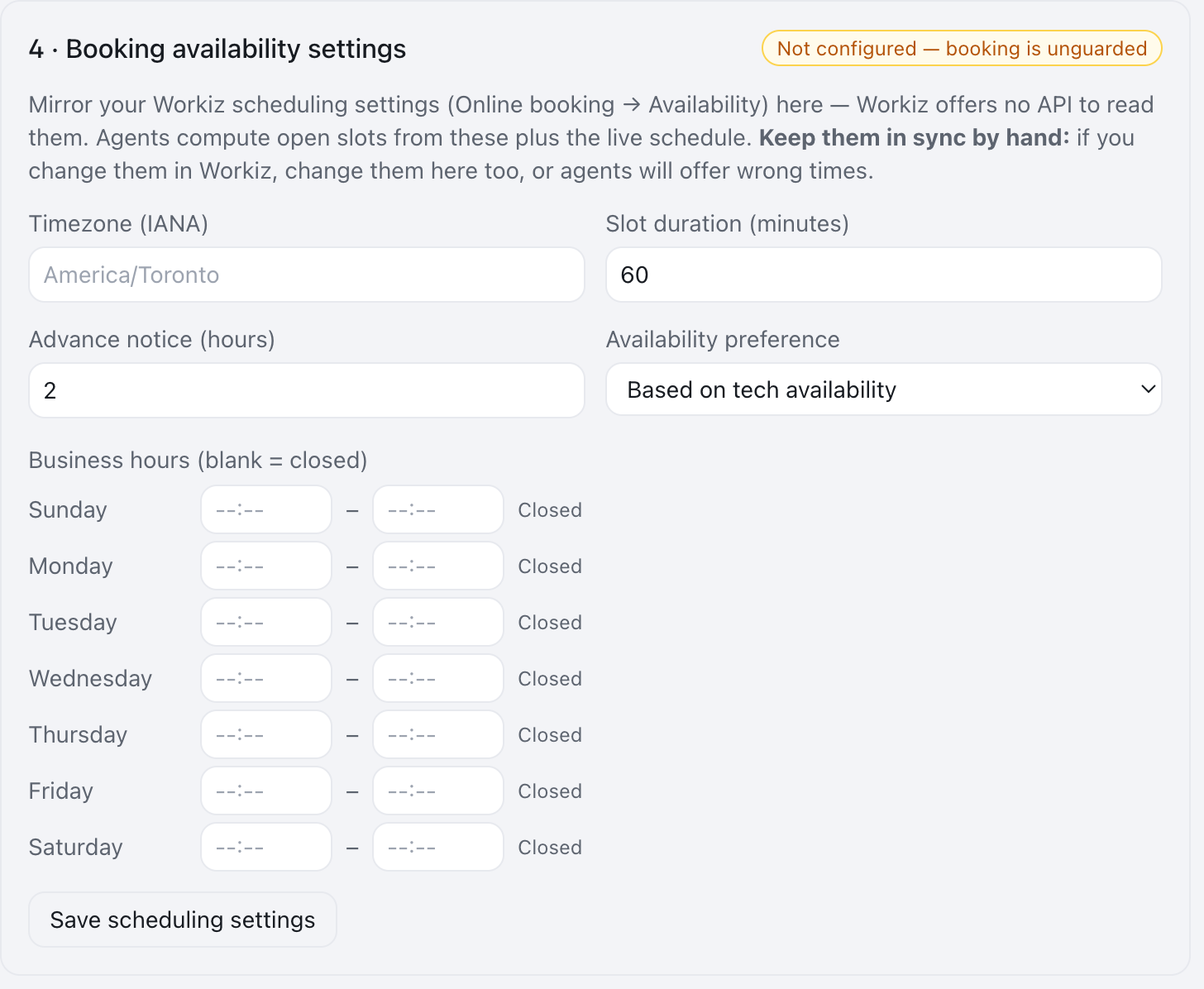
The screenshot above shows the section before anything is filled in — every day blank, every row marked Closed, and the chip warning that booking is unguarded. That is what you will see on arrival, and what you are clearing.
Step 5 · Enable the background connection check
Agents read live data on demand, so this is not a sync — nothing polls Workiz on a timer. The background check exists so a revoked token or a rotated feed URL surfaces on this page rather than in the middle of a customer conversation.
- Tick Enable background connection check.
- Set Check every (hours) — 12 is the default and is appropriate for most workspaces.
Step 6 · Booking defaults (optional)
Section 5 also holds the booking defaults. Everything in this group is optional and off until you enter a value — with nothing set, agents book exactly as they did before, and no agent asks a customer a new question.
| Field | What it does | Notes |
|---|---|---|
| Booking source stamp (JobSource) | The Job Source written on every agent booking when no customer source applies. | Must exist under Job Sources in Workiz, spelled exactly; otherwise the booking is created without it and the mismatch appears under Recent problems. |
| Default job type for bookings | The Job Type when the agent does not name one. | Must exist in Workiz. |
| Time display for agents | 24-hour (14:00) or 12-hour (2:00 PM) when agents read times to customers. |
With 12-hour on, tool results carry a spoken label beside each time. Tell your agent to quote the label — in its prompt, in the same change — or it may keep reading the 24-hour value. |
| Note appended to agent bookings | Text added to the job notes after whatever the agent wrote, e.g. Booked by Karmaflow.ai AI. |
Visible on the job in Workiz. No extra API call. |
| Tag agent bookings | A tag applied to every agent-created job, e.g. Karmaflow.ai AI. |
Create the tag in Workiz first. Workiz cannot set tags when a job is created, so this is a second update after each booking. If it fails, the job stays booked and untagged, and the failure appears under Recent problems — a tag never costs a booking. |
| Customer job sources | The Job Sources a customer can be attributed to, e.g. Google, Facebook, Referred. |
Spell each exactly as in Workiz. With a list here, agents ask the customer how they heard about you and stamp their answer instead of the fixed stamp. Leave empty to keep the fixed stamp. |
| When nothing matches, stamp | Which of the sources above to use when the customer's answer fits none of them. | Must be one of the sources above, so Workiz will accept it. Add an Other source in Workiz if you want one here. |
| Phrases customers use | Optional phrase → source pairs, e.g. saw your truck → Truck. |
Matched before the built-in matching runs. |
| Currency of Workiz amounts | The three-letter code (e.g. CAD) the dashboard's booking funnel and the Google Ads Lifecycle page denominate Workiz job totals in. |
Workiz sends amounts without a currency. Until one is set here or on the Google Ads integration, amounts are withheld rather than shown with a $. See Counting the jobs your agents book in Workiz. |
Select Save booking defaults. The list, its fallback and the phrases are checked against each other on save, so a fallback that is not in the list is refused here rather than failing inside a customer's booking.
Why the source stamp and the tag are separate. A job in Workiz has one Job Source. Once customers' answers go there, the tag is what still marks a job as agent-booked — which is what you filter a Workiz report on. If you leave the tag off, the appended note still says it on the job itself; it is just not something you can filter by.
Step 7 · Booking notifications (optional)
Workiz does not reliably send its own confirmation for a job created through its API, so a customer who books with an agent may hear nothing. Karmaflow.ai can tell both sides the moment a booking is written — no AI involved, it is sent by the platform with the exact values that went into Workiz.
Your team. Every agent booking and every reschedule raises An agent booked a Workiz job / An agent moved a Workiz job under Settings (gear) → Channels → Notification Preferences. They are on for email by default for anyone who can manage settings, and you can add addresses that have no login (a dispatch inbox) as extra recipients there. The alert carries the customer, the time window, the address, the job type, the notes the agent left for the crew, a link to the job in Workiz, and whether the customer received a confirmation.
Section 6 shows who gets it now, resolved the way the alert is actually delivered — each person's own preference, so the list never names someone the alert would skip. Add an address with no login (a dispatch inbox) right there, and press Send me a sample alert to see one.
Your customer. In section 6:
- Choose Send as — either one of your sender identities (created under Settings (gear) → Channels → Notification Senders; each uses a verified sending domain, so a mistyped address is impossible), or an agent's identity: any chat, SMS, voice, task or mail agent that already has a from address, listed as it sends today. If your chat agent already writes to customers as
info@yourbusiness.com, pick it here and there is nothing to create. An agent whose address is not on one of your verified sending domains is listed but cannot be chosen (it says domain not verified), because the platform would otherwise have to send it from its own domain and the email would fail authentication. Replies come back to the chosen address; the agent's CC/BCC come along; and the agent's From name fills{{business_name}}— with no From name, the templates fall back to "us". - Optionally pick a Signature. When you send as an agent that has one, the default is the agent's own signature; choose No signature for none, or any other signature to replace it — the same rule the campaign wizard uses when it borrows an agent's identity.
- Edit the two templates, Booked and Moved — a subject line and a rich-text body. Click a tag to insert it:
{{first_name}},{{when}},{{date}},{{start_time}},{{end_time}},{{address}},{{job_type}},{{business_name}}. A tag can carry a fallback for an empty value:{{address|the address you gave us}}. Crew notes are deliberately not available — they are written for the crew. - Watch the preview on the right: it is rendered by the same code that sends, against a fixed sample booking, so what you see is what a customer gets. Send me a test mails the current draft to you.
- Tick Email the customer when an agent books or moves their job and select Save booking notifications.
A template with a tag that nothing fills is refused at save, so a customer can never receive literal braces. Reset to default restores the built-in text for either template. The confirmation only goes to customers who gave an email address when booking, and never includes a price. A send that fails appears under Recent problems, and the team alert says so too. Every confirmation is listed under Recent confirmations in the section and in Sent Emails → Platform in the reports.
Agents see the result in their tool response, so an agent can tell a customer "you'll get a confirmation at that address" only when one was actually sent.
When your team moves or cancels a job. A person who moves or cancels a job on the Workiz Jobs page is offered Text and Email to the customer. The AI drafts the message from the change when asked, and the person edits and sends it; nothing goes on its own. This is separate from the confirmation email above. To stop the offer, clear Offer to tell the customer in section 6; it saves at once.
Step 7 · AI dispatcher (optional, priced)
The AI dispatcher lets your team say what they want done on the Workiz Jobs page and apply the plan the AI makes. It is off until a tenant admin turns it on here, ticking that they accept the price per plan shown (who accepted it, and when, is kept). A plan the AI could not make is not charged.
For each kind of step (move a job, assign or take off a technician, change a status, text a customer) choose:
- Ask first (the default): the step waits, ticked, for the person to apply;
- Apply on its own: made as soon as the plan arrives, unless the step is in doubt (a time your agents would not offer); the plan says it was applied by your setting;
- Never: left out of every plan, with the reason shown.
A text is always written and sent by a person, so it offers Ask first or Never. Every change the dispatcher makes carries the person's name and the plan, and is listed in the job's story.
What Agents Can Do Once Connected
With all five steps complete, agents on any channel can find jobs and leads by phone, email or name; read job details; check availability; book, reschedule and assign work; create and convert leads; and record payments. Every record an agent creates carries a link back to the conversation that produced it, so you can always see which call, chat or SMS thread caused a booking.
Agent tools appear only when Workiz is connected, and only for this workspace.
Troubleshooting
The chip in section 1 says the credentials could not be verified. The most common cause is that the Developer API add-on is not active in your Workiz Feature Center — without it Workiz will not honour the token. Confirm the add-on, then re-copy both values, as the token and secret are easy to transpose.
"Switch to v2" is greyed out. The line under the button says why. Usually the v2 key cannot read one of the areas marked needed: grant it in Workiz (edit the key's permissions), then select Re-verify v2 key.
On v2, agents say a booking failed with a permission error. The key can read but not write the area it needed — Workiz only reports write permission at the moment of the write. Edit the key in Workiz to give Read & Write on Jobs (and Leads), or select Switch back to v1 while you fix it.
Section 2 still says "Waiting for first delivery." No automation has reached Karmaflow.ai yet. Check that the automation is enabled in Workiz, that the URL was pasted whole, and that the Auth key went into the automation's Auth key field rather than the body. Then trigger the event once in Workiz — for example, create a test job.
Availability looks wrong, or agents offer times you cannot serve. Almost always the settings in section 4 have drifted from Workiz, since nothing keeps them in step automatically. Compare them against Workiz's Online booking → Availability screen. If tasks and events are missing from availability, check that the Calendar Sync feed in section 3 is set to All users.
Agents say they cannot check availability. Business hours are not set. Complete section 4.
You need to change the webhook URL or auth key. Use Regenerate URL & key in section 2. This invalidates the values already pasted into Workiz, so every automation using them must be updated by hand afterwards.