Set up after-chat actions
Choose when to submit intake forms, create CRM follow-up tasks and send a missed email or SMS, then check the action receipt.
Use after-chat actions when the customer can change a request before the conversation ends, or when an agent might miss an escalation. You choose the destination and timing for each published chat agent. You can use these actions with Review completed conversations turned off.
Choose when to submit a form or create a task
You need management access to the published chat agent, the workspace feature Conversation review and learning, and an eligible tool assigned to the agent. Authorizing a form requires permission to manage CRM forms (crm:forms:manage). Authorizing a follow-up task requires permission to create CRM tasks (crm:tasks:create).
- Open Settings → Agents & AI → Conversation learning and select the chat agent. Open Conversation learning (sign-in required).
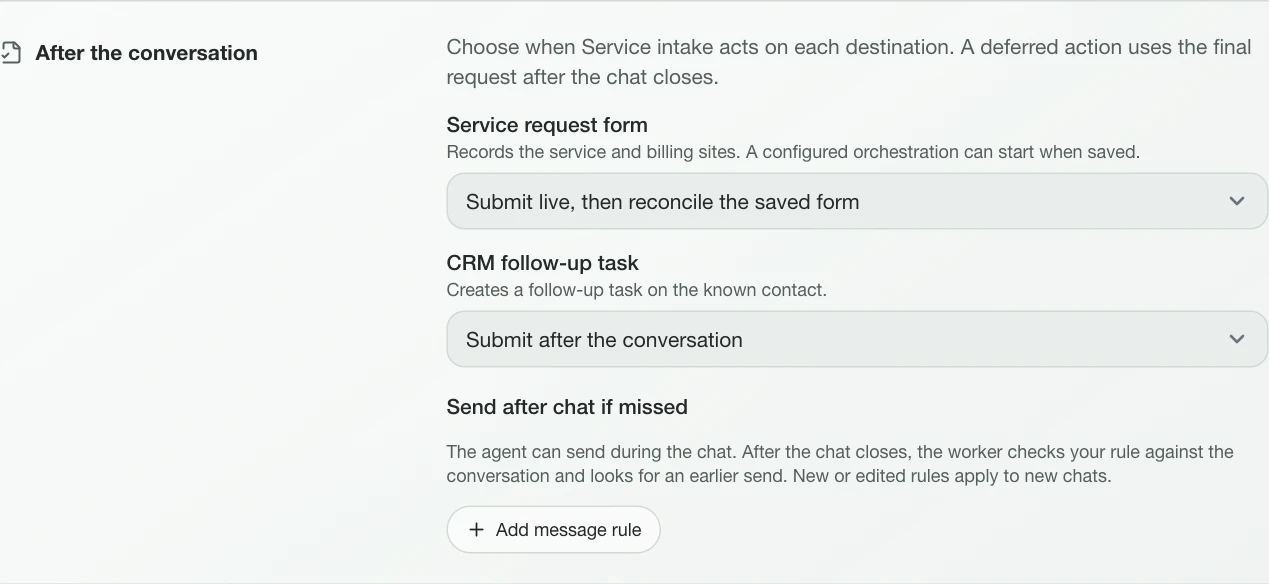
- Open Workflow settings → After the conversation. Find the assigned intake form or CRM follow-up task. If the list is empty, use Open agent settings to assign the tool and publish the agent. Setting up agent forms
- Choose a timing option for that destination. The table below explains each choice.
- Select Save workflow. Use a chat started after the change to check the result under After-chat actions.
| Timing | What happens |
|---|---|
| During the conversation | The agent can use the destination while the customer is present. |
| Submit after the conversation | The worker uses the final supported request after close. For an intake form it checks the required fields. For a CRM follow-up task it needs a known contact and an explicit request for follow-up. |
| Submit live, then reconcile the saved form | For eligible forms, the agent can submit live. The worker compares the saved submission with the final request and can correct that record when safe. If the worker cannot identify one matching live submission, someone edited it, or an orchestration has already acted on it, check the receipt for staff follow-up. |
For example, if a customer changes the service site to a warehouse but keeps the office for billing, a deferred form can use the final values in one submission. A withdrawn request or a missing required detail appears on the receipt.
Send an email or SMS if the agent missed it
The published agent needs the corresponding email or SMS tool and a configured sender address or number. That tool already lets the agent send during the chat. Add a rule when you also want the worker to check for a missed send after close.
- Under Workflow settings → After the conversation → Send after chat if missed, select Add message rule.
- Select Channel and Send to. For Staff recipient, enter one shared email address or one phone number with its country code. For Customer in this chat, the customer must have requested that channel, and the contact’s current address or number must match the one verified for this chat. Channel preferences still apply. Chat identity verification
- In When should the agent send this message?, describe a condition someone could verify from the conversation. For a staff escalation, try “The customer reported a service outage and it was still unresolved when the chat closed.”
- Select Save workflow. New or materially changed rules apply to chats started after the change. A matching confirmed send during the conversation already satisfies the rule.
Check what actually happened
- Open After-chat actions for the agent and select a receipt.
- For a form or task, compare Customer request with Values used. Check Delivery receipt and use View submissions or Open CRM task when available. A saved form and its downstream workflow have separate outcomes.
- For a message, check Send decision for who handled it, the reason and any provider receipt. Already sent during chat identifies a matching live send. Provider accepted confirms that the provider accepted the message. Delivery uncertain means you should check the original attempt before sending again.
- If an action needs follow-up, open the conversation and check the missing detail, changed record or recipient evidence. For a held customer message, check the verified address or number. The worker also needs an earlier agent reply containing the material the customer asked to receive. For example, if the customer asked for a setup link by SMS, check that the agent actually shared the link in the chat.
Remember a customer preference after chat
In the chat agent editor, switch on Enable Memories, select the memory types the agent should use, and publish the change. Existing agents with Memories and active types already qualify. At future chat closes, the agent checks for durable facts the linked customer stated, such as a corrected language preference. This also runs with conversation review and every after-chat action turned off.
When a conversation summary runs, it supplies the memory extraction in the same call. If scoring is off or no effective summary prompt is available, an eligible chat can use a separately metered memory pass. A review verdict, form submission or message rule is unnecessary for saving a preference.