Reading Campaign Results
Per-recipient outcomes on the Recipients tab, what each engagement state means, and how to turn clickers, repliers, or non-responders into the next campaign.
Reading Campaign Results
A campaign launched from the wizard is an orchestration, so it has the same dashboard as any other workflow — with one tab built specifically for campaigns. Recipients shows what happened to every person, lets you filter by outcome, and turns any cohort into a list or a follow-up campaign in one click.
The images on this page are illustrations of the screens, drawn to match the labels described; screenshots of the live product replace them as they are captured.
What You'll Need
orchestrations:readto open a campaign's dashboard and its Recipients tab.agents:mail:manageto use the cohort actions that start a new campaign.- Email open and click tracking switched on (Settings (the gear icon) → Channels → Email Sending) if you want Opened and Clicked to be measurable. When it is off, the funnel says so and offers Enable it in Email Sending.
Opening a Campaign
- Go to Agents → Workflows → Orchestrations and open the campaign. Campaigns created by the wizard are listed alongside your other workflows under the name you gave them.
- The dashboard has five tabs: Performance · Recipients · Timeline · Log · Errors. Click Recipients.
Straight after launching from the wizard, the dashboard shows a green Campaign launched. banner with a shortcut to the Recipients tab. Outcomes appear there as they happen.
The Recipients Tab
The funnel
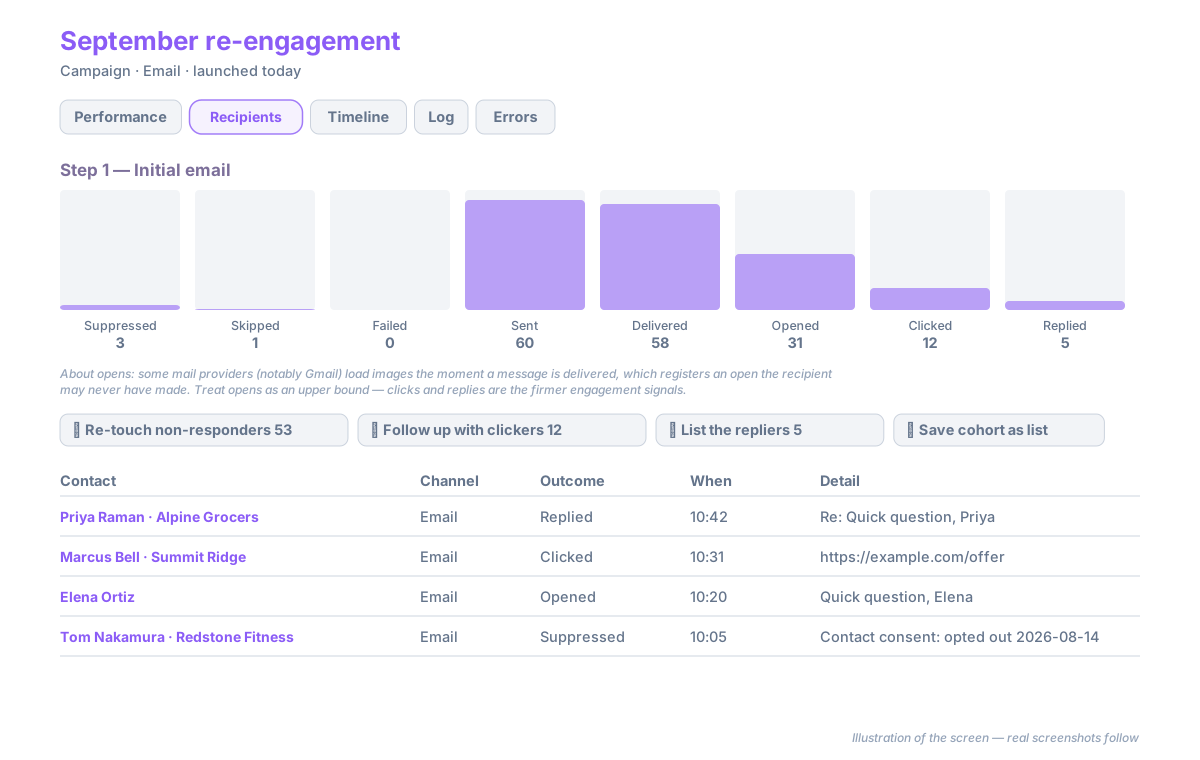
Each step of the campaign (the main send and every follow-up) gets its own funnel of engagement states with counts. Click a stage to filter the table below to that cohort; click it again to clear. The heading reads Recipients — Opened, Recipients — Replied, and so on while a filter is active.
Below an email funnel a caption explains a limit worth knowing: some mail providers (notably Gmail) load images the moment a message is delivered, which registers an open the recipient may never have made. Treat opens as an upper bound; clicks and replies are the firmer signals. The numbers are shown as measured, not adjusted.
Engagement states
Every recipient sits at exactly one point on a ladder, plus optional flags:
| State | Meaning |
|---|---|
| Suppressed | Not sent, by policy — the contact has opted out or the address has bounced. The reason is in the Detail column |
| Skipped | Not sent for a data or sequence reason — no email or phone number, the contact replied before a follow-up was due, or the rendered SMS exceeded the allowed length |
| Failed | The provider refused the message. Carrier rate limits are retried automatically and do not appear here unless retries are exhausted |
| Sent | Handed to the provider |
| Delivered | The provider confirmed delivery (SMS delivery receipts; email delivery events) |
| Opened | An email open was recorded — see the caption above |
| Clicked | A tracked link in the message was clicked. Clicking the unsubscribe link does not count as engagement |
| Replied | The contact answered — an SMS reply into the thread, or an email reply matched to the campaign |
Two flags can sit on any row: Bounced (the address hard-bounced) and Opted out (the contact unsubscribed — shown live from the contact's current consent, so a contact who opts out after the send is flagged too).
The table
Columns are Contact · Channel · Outcome · When · Detail. Contact links to the CRM record; Detail carries the reason for a Suppressed, Skipped, or Failed row, and the message subject or first line otherwise.
Acting on a Cohort
Above the table, one button per preset shows how many contacts it currently holds:
- Re-touch non-responders — everyone who was sent, delivered, opened, or clicked but did not reply.
- Follow up with clickers — everyone who clicked.
- List the repliers — everyone who replied.
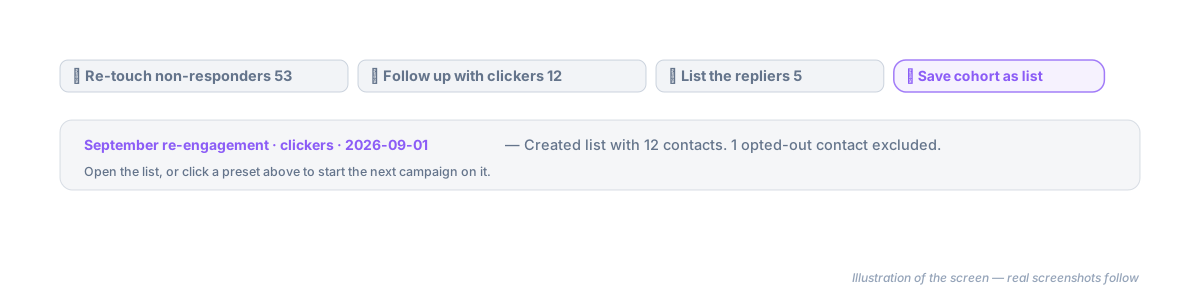
Clicking a preset creates a list from that cohort and opens the campaign wizard on it, so the next message can go out in a couple of minutes. Save cohort as list does the same for the currently filtered cohort without opening the wizard; the notice that follows links to the new list.
Contacts who have opted out are never added to a cohort list. The notice — and the wizard's Recipients step — tell you how many were excluded.
Where Else Results Appear
- The contact's Activity Timeline shows one row per SMS conversation — titled SMS conversation when the contact replied, SMS message when they did not — with the latest message in either direction (You: / Them:), the number of sends and replies, and a link to the full thread. Emails appear as their own rows. Open the row to read the full message, its delivery status, and a link back to the campaign that sent it.
- The company page's Activity Timeline groups the same way across all of the company's contacts.
- Agents → Reports & Logs → Sent Emails and Sent SMS list every message with delivery and engagement, filterable by campaign.
- Response counts on the contact (the vitals strip at the top of a contact record) include SMS replies received in campaign threads.
Troubleshooting
Opens and clicks are all zero on an email campaign. Tracking is off for the sending domain, or the messages contained no links. Turn tracking on under Email Sending; it applies to messages sent from then on.
A contact replied by SMS but the campaign shows no reply. Replies are matched to the campaign by the sending number and the contact's phone number. Check that the contact record holds the number the reply came from — a reply from a different phone creates a new conversation instead.
The cohort button is greyed out. It shows No contacts in this cohort yet — nobody has reached that state. Counts update as delivery receipts and replies arrive.