Your first correction, step by step
One complete worked example, from finding a conversation to seeing what your correction became.
Your first correction, step by step
This walks a single correction all the way through. Follow it once on a real conversation and the gesture will stick — most people need two or three goes before it feels natural, so do not worry if the first one feels slow.
Time: about five minutes, including roughly a minute of waiting while the AI works.
What you'll need
- Any account signed in to your workspace. Training is open to everyone — there is no permission to request first.
- One completed conversation where an agent said something you can correct. A voice call with a transcript is the easiest place to start.
Step 1 — Open a conversation the agent handled
Go to Agents → Agent Types → Voice Agents (the Agents list, filtered to voice), open any agent with View, and open a completed call.
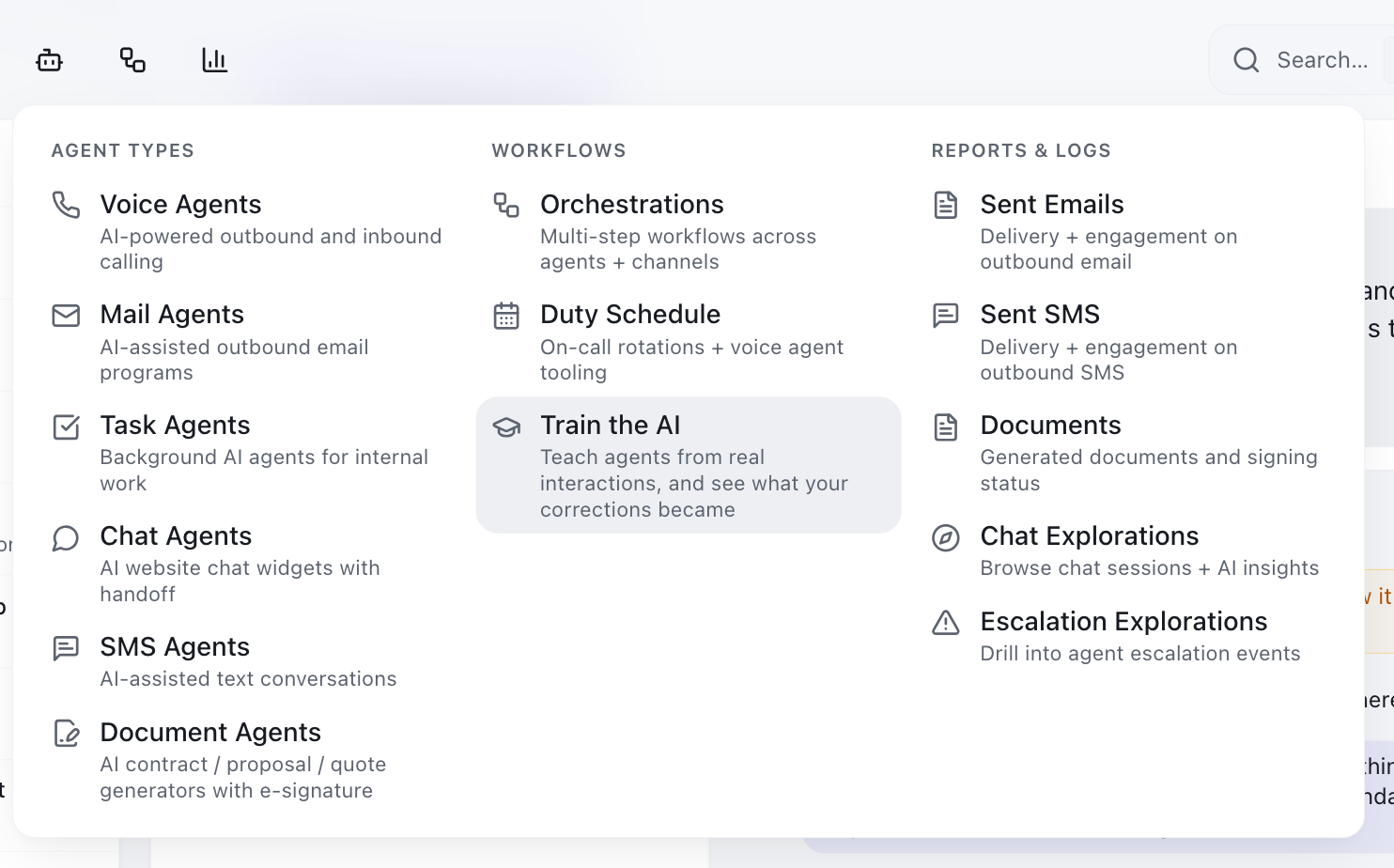
Where is that menu? Navigation is the bar across the top of the window, not a sidebar. Each menu opens a wide panel split into sections with grey headings — so the full path reads menu → section → item.
You will see the conversation as a transcript: the agent's messages and the other person's, in order.
Step 2 — Find a message the agent wrote
You can only train what the agent said. The other person's messages have no training controls — they are a record of what happened, not something to correct.
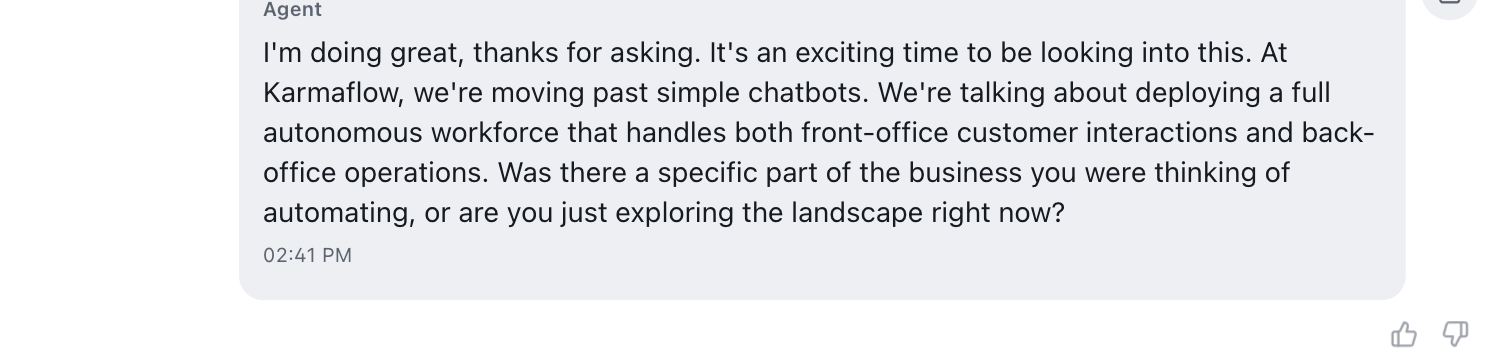
Look at any agent message without touching it. The controls are already there, just quiet:
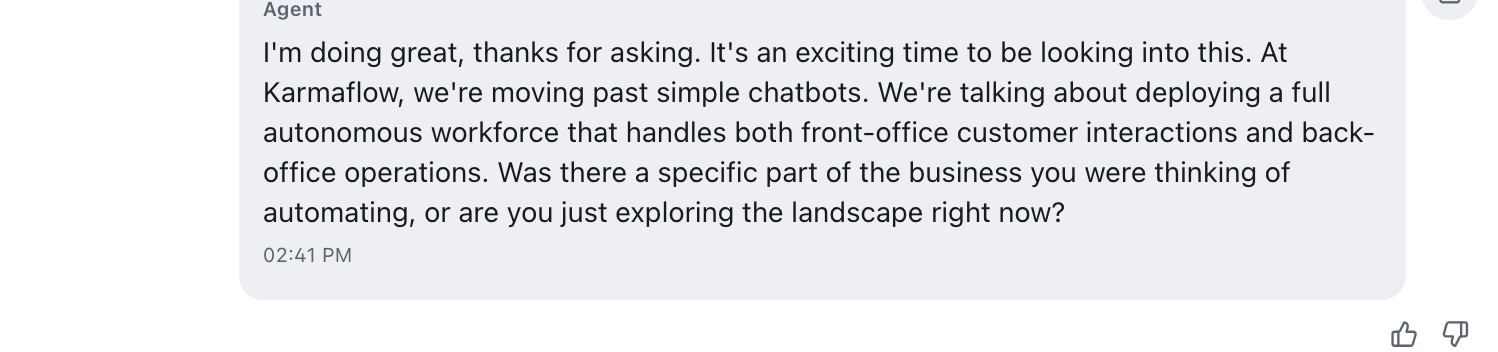
Move your pointer over the message and they darken:
Step 3 — (Optional) Leave a quick rating
If the message was simply good or simply bad and you have nothing to add, click 👍 or 👎. The buttons are replaced by a confirmation:
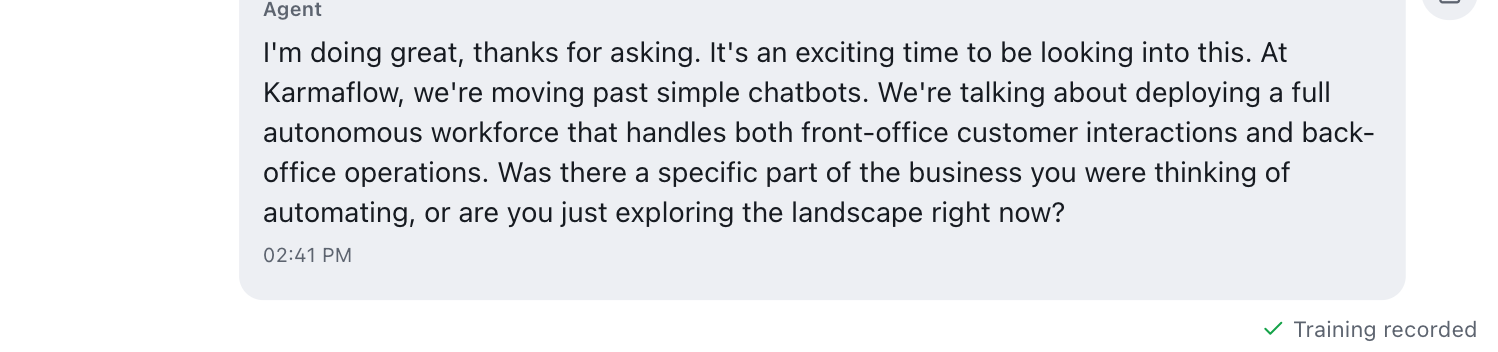
That is the whole interaction — no form, no follow-up. Ratings are counted as signal; they do not create a correction on their own.
To actually fix something, keep going.
Step 4 — Select the exact words that are wrong
Click and drag across the whole phrase you want to correct. An amber chip appears showing what you selected:
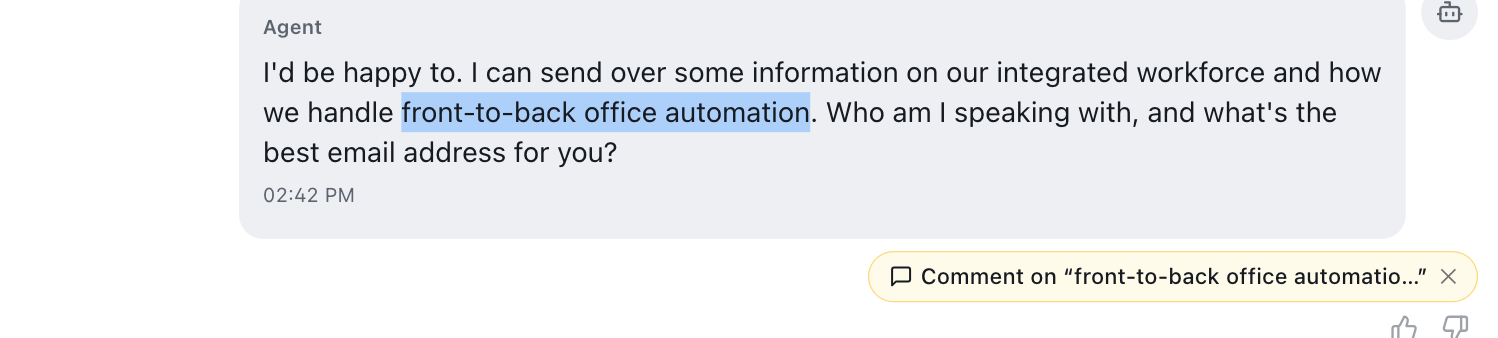
Read the chip before you click it. It shows the exact words that will be quoted in your correction. Double-clicking selects only a single word, and a one-word quote gives the AI very little to work with — it will usually come back with a clarifying question, costing you an extra round trip. Drag across the full phrase instead.
Step 5 — Open the thread
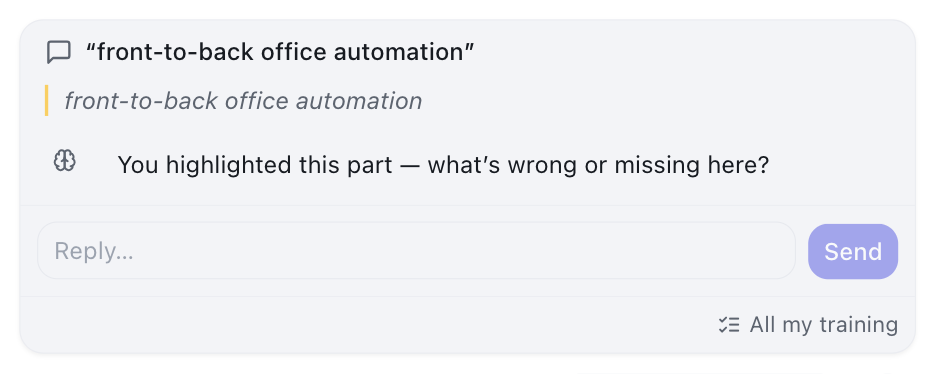
Click the chip. A thread opens, pinned under that message. The AI quotes your selection back and asks you a question — you are never given a blank mandatory box:
Step 6 — Say what is actually true
Type your correction in plain language. Write it the way you would explain it to a new colleague:
The agent said support requests get a response within 24 hours. Our commitment is one business day for standard requests — this needs correcting.
Two things that make a correction land well:
- Name the wrong value and the right one. "This is wrong" gives the AI nothing to act on; "it says 24 hours, it should be one business day" does.
- Say if it should not become a rule. If it is specific to this one conversation, say so — the AI will note it and close, rather than changing what every agent knows.
Click Send.
Step 7 — Wait, and watch it work
The AI now reads your knowledge base, finds the relevant material, and works out what to change. This can take up to about a minute on a knowledge correction — it is doing real work, not just replying.
You will see a line telling you it is working. On the reviewer side, the same process shows its steps:
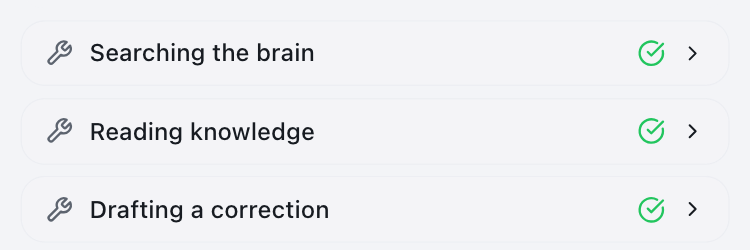
If it comes back with a clarifying question instead of an outcome, answer it in the same thread — that is normal, especially if your highlighted phrase was short or ambiguous.
Step 8 — Read your receipt
This is the most important step, and the one people skip.
Underneath the quoted text you will find a receipt — a short status line saying exactly what happened to your correction. There are several possible receipts and they all count as success. Here is a draft awaiting review:

And here is one that became knowledge outright:

Every possible receipt, and what each one means, is in What happened to your feedback.
A thread with no receipt at all is the only real failure. If you see one, that is worth reporting.
Step 9 — Find it again later
You never have to remember which conversation you corrected. Open the Agents menu in the top bar — Train the AI sits under the Workflows heading:
That page lists everything you have taught, with counters across the top and an outcome badge on every entry:
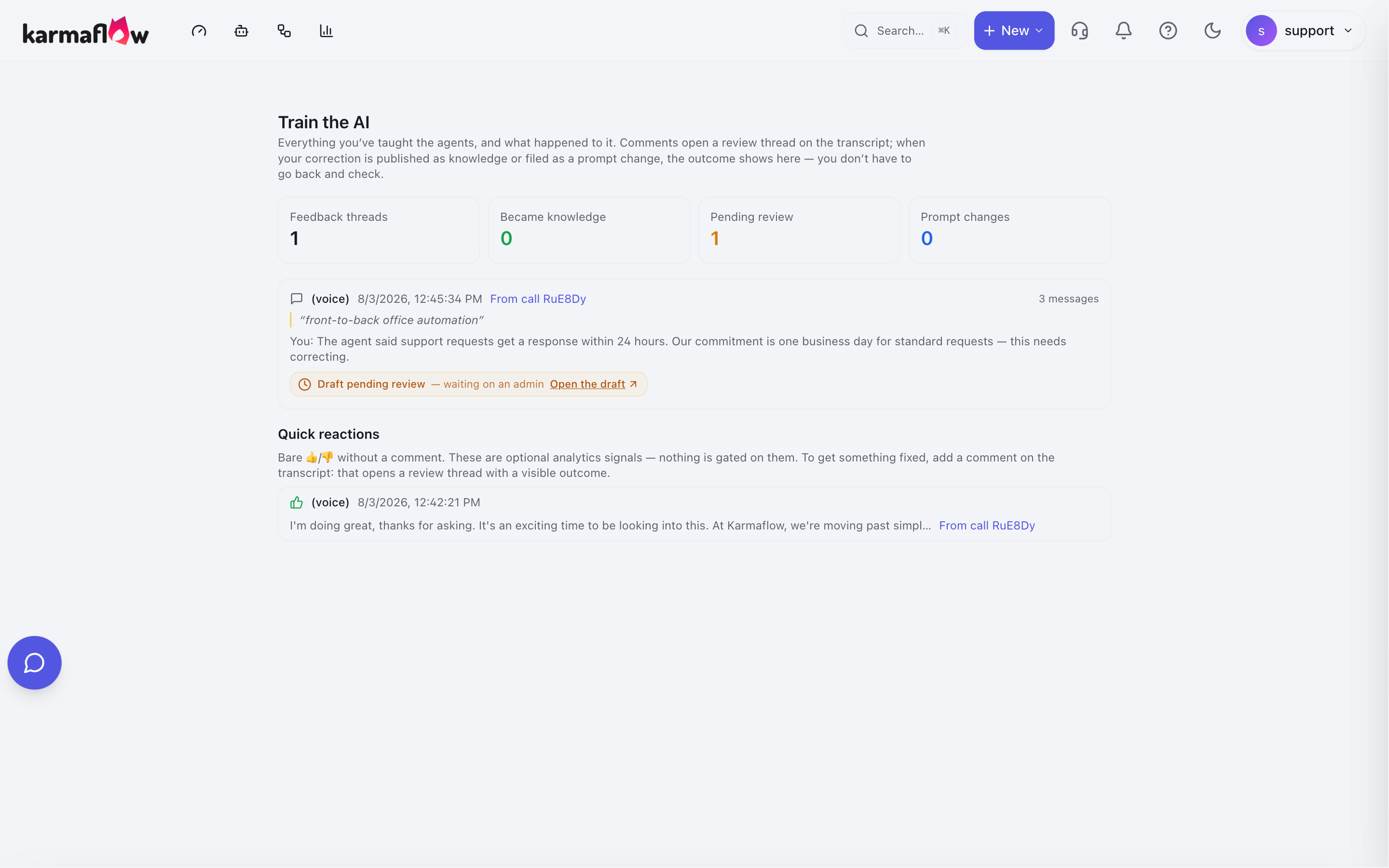
Your entry shows the phrase you quoted, your comment, and what became of it:

Step 10 — When it becomes knowledge
If your correction became knowledge, the entry turns green and offers a link to the knowledge itself:

Back on the original conversation, the thread shows the same outcome and closes itself:
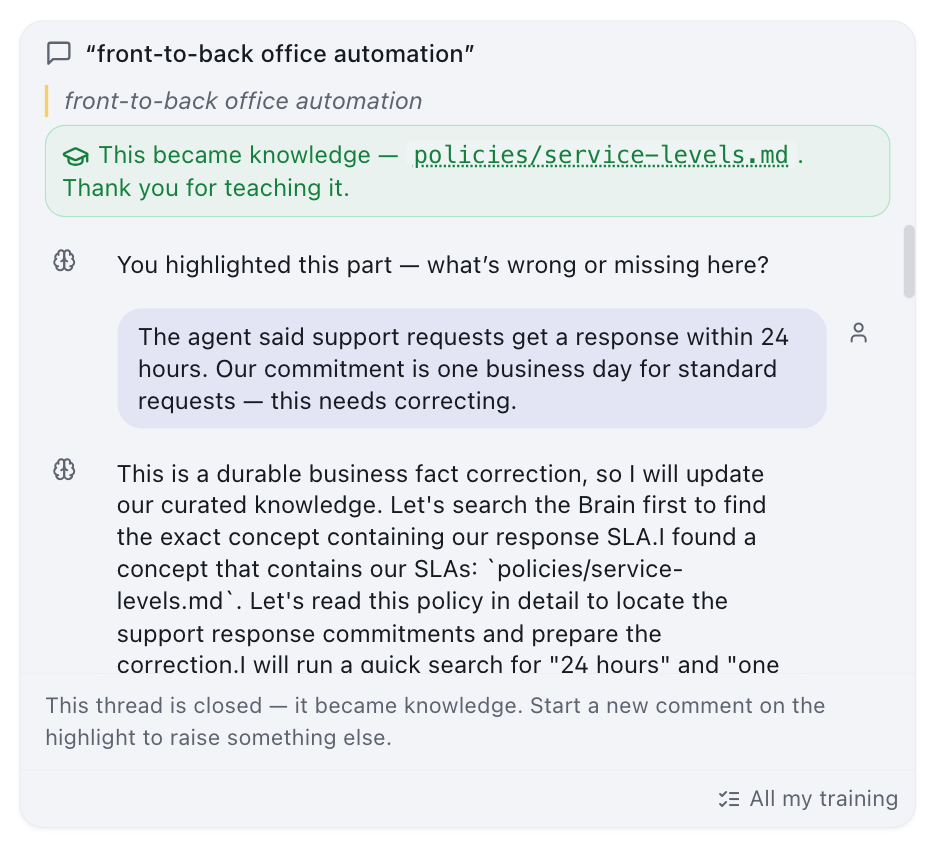
The thread closing is deliberate — the question it was opened to answer has been answered. To raise something else about the same message, start a new comment on the highlight.
If the concept name is plain text rather than a link, your role cannot open the knowledge base directly. The correction still landed — hover the text and it will tell you who can give you access.
Troubleshooting
I highlighted a phrase but no chip appeared. Check you selected text inside a message the agent wrote. The other person's messages are not trainable. If you selected inside an input field or a non-agent block, the chip will not offer itself. And if there are no thumbs anywhere either, training is switched off for the workspace — a workspace admin turns it on under Tenant Settings → Agents & AI → Agent Feedback & Training.
The chip quotes fewer words than I highlighted. Drag-select rather than double-clicking, and check the chip text before clicking it.
The AI asked me a question instead of fixing it. Answer in the same thread. This usually means the quoted phrase was too short to identify the fact, or your correction did not state the correct value.
Nothing happened for a minute and I thought it had frozen. Knowledge corrections routinely take 40–60 seconds. A progress line tells you it is still working.
My correction became a "prompt change" and I expected knowledge. That means the AI judged it to be about how the agent speaks rather than what is true. If you disagree, reply in the thread and say the correction is a business fact — see What happened to your feedback.
Next steps
- Where you can train — the same gesture on email, chat, SMS and task-agent output.
- What happened to your feedback — every receipt explained.
Related
- Training your AI agents — the overview and role model.
- Brain Browser walkthrough — the knowledge base your corrections feed.