Share booking links with AI agents
Let voice, chat, SMS, email and task agents send a teammate’s booking page. Set up co-hosts, choose who gets notified, and transfer bookings to a new host.
A voice agent can text a caller a test-drive link even when the salesperson owns the booking page and someone else created the agent. The page determines whose time the visitor can book. The agent’s settings determine which links it can offer. The same setup works for chat, SMS, email and task agents.
Give an agent access to a teammate’s booking page
- Open Calendar → Booking pages and select the published page. You need permission to manage that page.
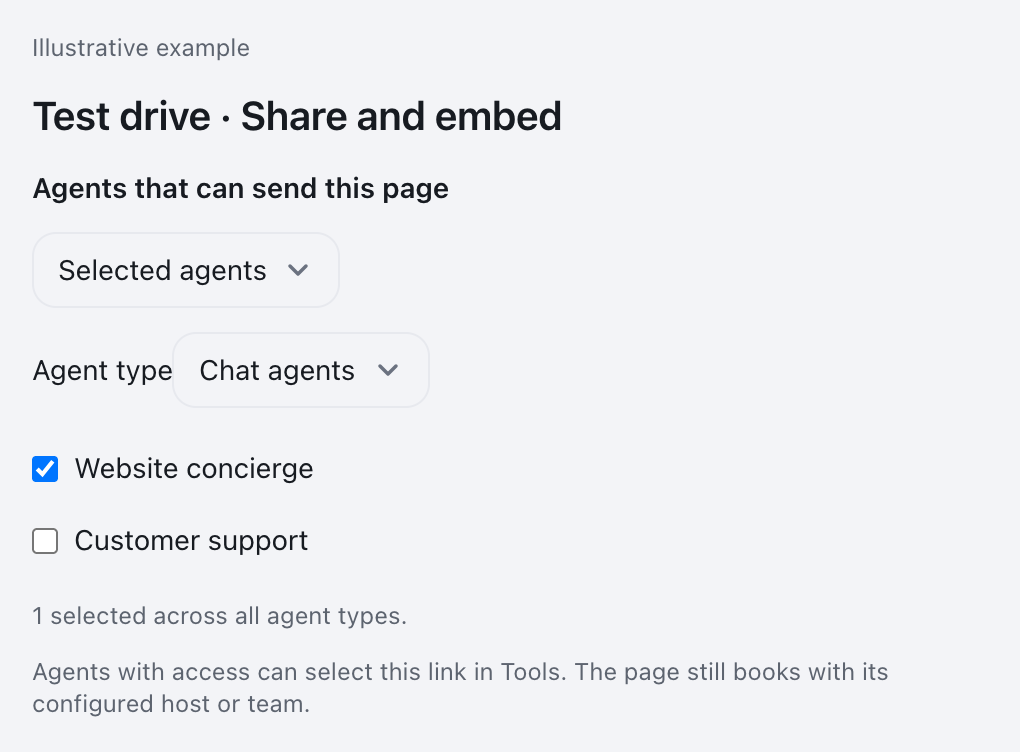
- Under Share and embed → Agents that can send this page, choose Selected agents. Pick an agent type and tick the agents that should send the link. Repeat for other types, then Save. Choose All workspace agents if every agent in this workspace should be eligible to select the page.
- Open the agent’s Tools and enable
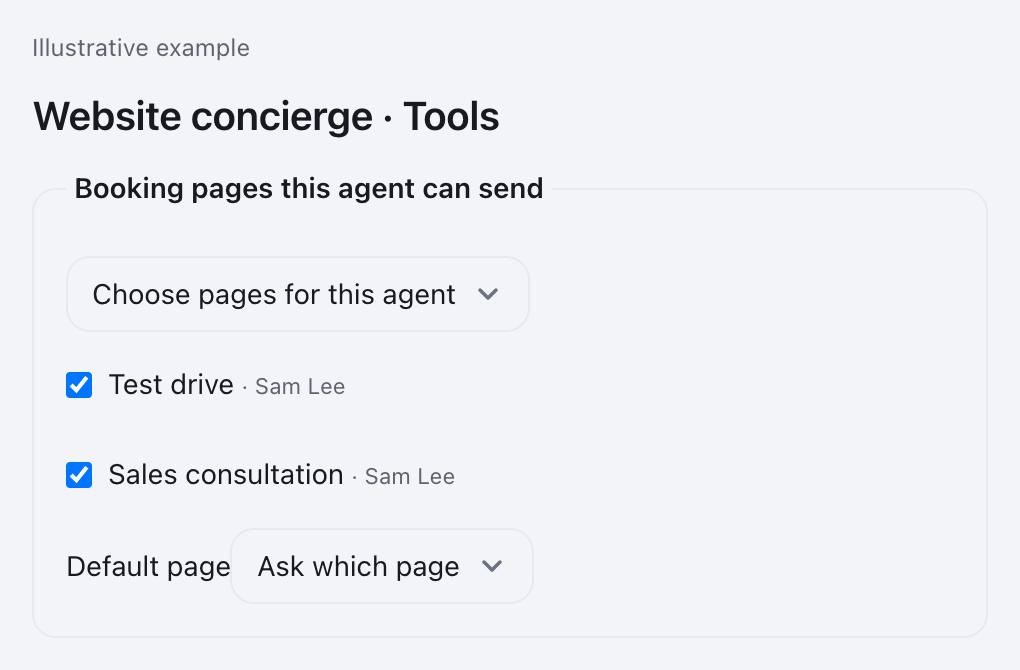
calendar-booking-page-link. For a new agent, save it first. Under Booking pages this agent can send, switch from Use the host’s published pages to Choose pages for this agent, then tick the page. - If the agent offers several appointments, choose Ask which page or pick a default. Save and push the agent live. Ask for each appointment by name in a test conversation and check the returned address.
In chat, the visitor can open the link in the conversation. On a voice call, enable a suitable delivery tool and have the agent ask permission before texting or emailing the address. A visitor who follows the link still needs to choose a time and finish booking. A personal link recognises one contact and should only be sent to that person.
Choose a co-host or a notified viewer
| What should happen? | Where to set it | What the team sees |
|---|---|---|
| Two people must attend every appointment booked through the link | On the page, open Basics → Together with → Add a person. Choose the co-host and save. | The visitor sees both names and times when both are free. The primary host organises the meeting and the co-host is included. |
| Someone needs visibility when a visitor books through the link | On the page, open Basics → Who else sees the meetings this page books. Select people or roles and save. | Viewers can read new meetings and receive notices according to their preferences. Their availability does not limit the visitor’s choices. |
| An agent should book an ordinary calendar meeting directly and tell a teammate | On a voice, chat, SMS or task agent with direct booking available, open Tools → Who else sees the meetings this agent books. Select people or roles and Save who sees its meetings. | The booking uses the agent’s authorised host. Selected viewers can see the meeting and receive notices when it is booked, moved or cancelled. |
For a two-host appointment, tell the agent to offer the matching booking page whenever someone asks to book. For example, “For a test drive, send the Test drive booking link so the visitor can choose a time with both hosts.” A page-sharing grant lets the agent send a URL. Booking directly on another person’s calendar requires its own authorisation.
On Karmaflow’s own calendar, the host and co-host receive booking notices according to their notification preferences. A visitor with a deliverable email address can receive a confirmation and a link to move or cancel, subject to contact preferences. See booking with colleagues for connected-calendar invitations. For work that depends on technicians, equipment or shop capacity, see Jobs.
Transfer future bookings to a new host
A workspace member with Manage Calendar Settings can open the page’s Basics → Who takes the call → Change and choose the incoming host. Check their working hours, update Together with, and remove temporary viewers or co-hosts when they no longer need access. Save, then open the published page and check the names and available times as a visitor.
The public URL can change with the host’s booking address. Test links already on your website and in agent instructions. Review upcoming meetings separately because changing the page host applies to new bookings. If an agent also books directly, check its authorised calendar host separately.
Why can’t my agent find the booking page?
If the agent shows The default host has no available page, check the host name on the page, its publication status, the page’s sharing setting, and the agent’s selected pages. An agent using the default host lookup can miss a colleague’s page even when both people belong to the same workspace.
If the agent used to send the page, check whether the host revoked access or unpublished it. The agent checks current access when requesting a link. Removing an agent’s grant stops future link requests from that agent. To take the public page offline, unpublish it.