Booking Pages
Publish a page where people book a time with one of your team, inside their hours, with your brand and your privacy link.
Booking Pages
A booking page lets someone book a meeting with one person on your team without a back-and-forth. It offers times inside that person's hours and checks the calendars they use to block booking times. The meeting is written to their Google or Outlook calendar, the visitor gets the invitation and a confirmation email with their own link to move or cancel, and the meeting appears on the Calendar page with the booking page as where it came from. A person with no Google or Microsoft calendar connected can be booked too, on Karmaflow.ai's own calendar (see Booking with no calendar connected).
What you'll need
- The Calendar module, which a Karmaflow.ai administrator includes for your workspace.
- Manage Own Booking Pages (
calendar:pages:manage-own, Members by default) to create pages you host, and to change, publish, preview and embed the pages you host or created. - Manage Calendar Settings (
calendar:settings:manage, Managers by default) to do the same for every page, and to give a page to another host. - View Calendar is enough to see every page. Tenant admins change who holds which permission under Roles.
- A calendar for each person the page books: their connected Google or Microsoft calendar, or, when they have nothing connected, Karmaflow.ai's own (see Booking with no calendar connected). A page with people under Together with needs each person's own Google or Microsoft calendar.
- Your privacy link. A page cannot be published without one: set your privacy policy link, or publish a short notice, under Helpdesk Settings → Customer portal → Privacy. See Customer Portal.
Create a page
- Open CRM → Daily work → Calendar. In the toolbar, open ⋯ (Calendar options) and choose Scheduling. On the Booking pages tab, press Open booking pages. The direct address is
/calendar/booking-pages(sign-in required). - Press New booking page. The builder opens: its sections down the left (a row across the top on a phone), the section you are in, and the live page beside it.
- Work through the sections, below, in any order.
- Press Create page. The builder now shows the page's address, and Save keeps later changes.
The builder has seven sections:
| Section | What you set |
|---|---|
| Basics | Page name, its Link (fills in from the name), an optional Event type, the Description, Who takes the call (you, until you press Change), How bookings are shared (one person, or a team: see Team pages) and Together with: up to five colleagues at every meeting booked on the page (see Booking with colleagues), the Length and Where: Video call, Phone call, In person or Decide later (see Where the meeting happens). Charge for this call when your workspace has Paid bookings (see Taking payment). |
| Look and brand | This page's layout: Suggested times (a few good times picked for the visitor, with everything open below) or Step by step (choose a day and time, then your details, then payment, beside the host card). This page's theme: Light, Dark or Visitor's device, set for this page only (your help portal keeps its own theme). A visitor's move and cancel page wears the theme of the page they booked on; your own address listing your pages wears your pages' theme when they all share one, otherwise light. Accent colour and Font: the page's own, or the brand kit's until you change them. Below, the brand kit's logo, name and privacy link, which every page shares. |
| Availability | Minimum notice, How far ahead a new visitor sees, How far ahead with a personal link, the Break after each call, and Days off (below). |
| Suggested times | How many to show above the full view; How they are picked, in this order (below); Explain why each time was picked; Let visitors type when works; and the Undo window after a visitor's tap. |
| Recognized visitors | How long Personal links last (7, 14 or 30 days), Show what they told us on the page, the news box, and a personal link for one contact. |
| Form and questions | Form fields: name and email are always asked; add Phone, Company, Address or Message, each Not asked, Optional or Required. A phone-call page where you call them always requires their number, and a page that meets at their place always requires their address (see Where the meeting happens). When your visitors get text reminders, Phone is shown as optional even if you set it to Not asked, with the reason beside it (For a text reminder 2 hours before.). Each required field costs some bookings, so the builder points it out when a video or in-person page requires a phone number; the choice stays yours. Then your own questions, up to ten. For each, choose Before booking, in the form (tick Required to book to make it a must) or After booking, optional prep. |
| Share and embed | The page's address, and the code to put it on your website. |
Each choice has a few quick picks and a box beside them for any other value.
The live preview
The right side of the builder (under the section on a narrower screen) shows the real booking page, at its own address, as a visitor would see it. Switch between Desktop and Phone, or press Open full page.
- It works before the page is published: the builder opens it with a pass that lasts 30 minutes and is renewed while the builder is open.
- It shows your changes as you make them, before they are saved: a moment after each change the preview reloads with it, and the builder says The preview shows your changes, before they are saved. Save to keep them. Visitors keep seeing the saved page until you save. A change a save would refuse (an empty title, for example) is not shown: the preview stays on your last change it could show and says why.
- Clicks work in it, but nothing can be booked from a preview: holding a time, booking, paying, answering the questions, moving and cancelling are all refused.
- Previewing needs the right to change that page: you host it or created it, or you have Manage Calendar Settings.
Your brand
A booking page's look is set on the page itself, at the top of Look and brand: its layout, light or dark theme, accent colour and font. The accent colour and font follow your workspace's brand kit (shared with your help portal) until you change them for the page. The logo, name and privacy link always come from the kit. That section also shows the kit and whether your privacy link is set. To change the kit, open Helpdesk → Setup → Helpdesk Settings → Customer portal (that needs Manage Helpdesk Settings); every booking page and the help portal change together. Refresh from your website starts the kit from your site instead.
Days off
Under Availability → Days off, press Add a day off, pick the date and, if you like, write what visitors read that day, for example Closed for the holiday. Leave it empty and the page shows nothing about it. No time is offered on a day off, and a visitor cannot hold one. Dates are in the host's time zone.
Booking with colleagues
Under Basics → Together with, press Add a person to put a colleague at every meeting booked on the page, for example a site engineer who joins every assessment. Up to five people can be added beside the host.
In Calendar, open ⋯ (Calendar options) in the toolbar, then choose Scheduling to manage your hours, reminders, meeting research and visibility. Its last tab, Booking pages, opens the list of pages.
- The page offers a time only when the host and every person on the list are free, each inside their own hours and time zone (their own hours under Calendar → ⋯ → Scheduling → Your hours, inside the workspace's). Your hours says them as you would (Agents can book you Mon–Fri, 9 am–5 pm Eastern time, the same as the workspace.) above a bar for each day that follows your changes before you save. When your own hours are the same as the workspace's, Follow the workspace's hours is picked for you; save to keep it, and a later change to the workspace's hours then reaches you too.
- The host organises the meeting, so it is kept on the host's calendar. When that is Google or Microsoft, each colleague gets the calendar invitation with the visitor. When the host has nothing connected, the meeting is kept on Karmaflow.ai's own calendar and Karmaflow.ai tells each colleague of it, and of a move or a cancel, in the app and by email. A colleague who has Google or Microsoft 365 connected also gets the meeting in their own calendar: Karmaflow.ai adds it there for them, moves it when the meeting moves and takes it off when the meeting is cancelled. Either way the meeting shows on each person's Calendar page.
- Nobody on the page needs a Google or Microsoft calendar connected. A person with nothing connected is free by their hours, minus the meetings Karmaflow.ai holds with them on it (see Booking with no calendar connected). Availability → Which calendar lists each person with the calendar their free time is read from.
- The page shows them under the host, with their photos: with Sam Lee and Ana Ruiz.
Team pages
A page can share its bookings across a team, so a visitor books whoever is free. Under Basics → How bookings are shared, choose:
- Round robin: each booking goes to whoever is free at that time and has had the fewest meetings from this page in the last 30 days. When two are level, the one higher in the list gets it.
- First available: each booking goes to the first person in the list who is free at that time. Put the person you want booked first at the top.
- Whoever is on duty: each booking goes to whoever your duty roster (Duty Schedule) has on at that time and is free, inside their own hours; when two are on, roster priority decides. A time is offered only inside a shift. People on the roster are matched to your workspace's users by email, so give each person the same email in both; anyone without a user account is skipped. A person on duty with no Google or Microsoft calendar connected is booked on Karmaflow.ai's own calendar (see Booking with no calendar connected). The page will not publish while nobody on the roster in the next two weeks is a user here. The Calendar page shows who is on call each day (to people who can open Duty Schedule), and marks anyone on the roster who is not a user here.
For Round robin and First available, press Add a person for each member; a team needs at least two. The page offers every time at least one of them is free, each inside their own hours. The meeting is on the calendar of the person it went to, and moving or cancelling it stays with them. The page shows the team under the host: You'll meet Sam Lee or Ana Ruiz. Every member needs a calendar connected before the page publishes, and Find my meetings lists a visitor's meetings with anyone on the team.
A page shares bookings across a team or books everyone Together, not both.
Choose which calendars to use
Open CRM → Daily work → Calendar, then Connected calendars in the toolbar. Connect your Google or Microsoft account if needed and grant calendar access. Under each provider, choose the calendars you want to use, then press Save Google choices or Save Microsoft choices.
- Show events displays events from a calendar in your own Karmaflow Calendar. Karmaflow reads the events live from Google or Outlook. To change an event on a secondary calendar, open it in Google or Outlook. The change appears the next time Karmaflow reads the calendar.
- Block booking times checks a calendar for busy time when offering times on your booking pages or through agents. You can do this without showing its events in Karmaflow. Google calendars shared with busy-time access can block times even if their event details are unavailable.
Before you save your own choices, bookings on Google check its primary calendar and the other listed calendars your Google account owns. Bookings on Outlook check its primary calendar. Once you save, your selected calendars can block times across both providers. The booking itself still goes to the calendar your booking uses.
Seeing colleagues on your Calendar
On the Calendar page, open My calendar in the toolbar and check up to five colleagues. The control then shows People with the number selected, including you. Each name says Busy times only, or why availability is unavailable. Uncheck a name to stop showing them; the choice is kept on this device. Day labels their busy time in a separate rail, Week uses a narrow hatched band inside each day, and the phone shows busy rows. These times are read live from their connected Google or Microsoft calendar; their meeting details stay private. Open Calendar key below the desktop grid for the colours and patterns.
How much each colleague shows is their own choice, under Calendar → ⋯ → Scheduling → Visibility:
- Nothing: colleagues see that the calendar is private.
- When I am busy (the default): times only.
- Busy times and titles: the meeting titles too. An event marked private in Google or Outlook (private, confidential or personal) still shows as "Busy".
Titles are offered only when an administrator allows them under Settings → Timezone & bookable hours → What colleagues may see (busy times only by default; needs Manage Calendar Settings, and the change is in the audit log). Agents only ever read busy times, whatever is chosen. A colleague who shows nothing, or who has no calendar connected, is listed with the reason instead.
Each person should connect their own Google account. When two people connect the same one, their calendar and email access come from the same account. Connected calendars names the people who also connected your account. A colleague on your own account is listed as connected to your Google account and shows no busy times. A colleague who shares an account with another member is marked shared Google account. Google settings also shows the warning, and workspace admins see these accounts under Members sharing one Google account on that page.
Asking for consent
A booking is permission for the invitation and reminders about that meeting, and nothing more. To ask for more, turn on a box under Recognized visitors → Ask if they want news from you. A box is never ticked for the visitor.
Ask if they want news from you adds an unticked box under the booking, in your own words (or Send me news and offers from <your name>. Unsubscribe any time.). Ticking it records an opt-in to marketing email on their contact, with the words they saw and the page: see Communication Consent and Opt-Outs. If your workspace confirms new opt-ins by email, the visitor is emailed a confirmation and the opt-in counts once they press its button.
The box is shown to visitors who arrive by their personal link. A new visitor could type someone else's email, and an opt-in recorded on a stranger's record would be false evidence, so they are not asked.
A phone number typed for the booking is not permission to text anything else. Meeting reminders go by email, and by text where your workspace turns text reminders on.
Calendar → ⋯ → Scheduling → Reminders opens on two tabs when people may set their own: Mine (how long before the email and text go for your own meetings, or off) and Workspace (everything else, for those who manage calendar settings). Each part of Workspace reads as one line (1 day before, 08:00–20:00, AI opening) until you open it, and one bar at the bottom says Unsaved changes with Discard and Save. Under Text to the people you meet, a sample shows the text as it would go, signed with your name, and how many parts it takes and what each reminder costs: a booking page's move-or-cancel link usually makes it three parts.
If a visitor has opted out of email, the page they booked on tells them they will not get a confirmation email or reminders, and the meeting's Reminders list says why each was not sent.
Each upcoming meeting is also scored for how likely the person is to miss it, from what you already know about them: meetings they missed before, a first meeting, a booking made more than two weeks ahead, a meeting moved twice or more (kept meetings and a reply since booking count the other way). The meeting on the Calendar shows Some risk or Likely to miss it with those reasons, and the week view marks a likely miss with an amber dot. What happens next is your choice, under Calendar → Reminders → When a meeting is likely to be missed: Send an extra reminder (the default: an email two hours before, and a text where text reminders are on), Ask the host to confirm it (an alert in the app the day before), or Do nothing more. An extra reminder shows in the meeting's Reminders list with the reasons it was sent.
Ask AI about your week, or one meeting. The Calendar page's Ask AI button (and the same button in a meeting's drawer) prepares a prompt for your own assistant: Copy for AI, Open in Claude, Open in ChatGPT, or Copy for Microsoft Copilot, whichever your workspace offers under Settings (the gear icon) → Analytics → Analytics & Insights → Cards & alerts → Ask AI. You see the prompt first, beside the page or inside the drawer: the days in view, your bookable hours, and for each of your meetings its time, title, state and how likely a no-show is. No name, email, phone number, notes or place leaves: a contact is named by id, and the prompt tells an assistant with the Karmaflow.ai connector how to look the person up. A colleague's busy time and events from your connected calendar are never included. If the redaction step fails, nothing is sent. Every hand-off is recorded in the audit log.
Taking payment
A page can ask visitors to pay before the meeting is booked: the whole price, or a deposit. They pay on your own Stripe account, on Stripe's page, so the money goes straight to you and Karmaflow never sees their card. This is part of Paid bookings, an add-on to the Calendar; it includes 30 paid bookings a month.
Connect Stripe
You need the calendar:settings:manage permission and a Stripe account.
- In Stripe, open Developers → API keys and choose Create restricted key. If Stripe asks how you will use it, choose the option for an integration you built and set the permissions yourself. Name it "Karmaflow" and give it exactly these permissions: Checkout Sessions: Write, PaymentIntents: Read, Charges and Refunds: Write, Customers: Write and Webhook Endpoints, Event Destinations: Write.
- In Karmaflow, open Settings → Integrations → Stripe (paid bookings).
- Paste the key (it starts with
rk_test_orrk_live_) and press Connect.
Saving checks the key with Stripe and sets up Karmaflow's webhook in your Stripe account, so there is nothing to copy back. The page then reads Connected · payments to your account, with Test mode or Live. A secret key (sk_…) is refused, because it could do anything in your account. Disconnect removes the webhook from your Stripe account, forgets the key, and unpublishes any published page that asks for payment (the message names them), since those pages could not take a booking.
Start with a test key: visitors pay with Stripe's test cards, no money moves, and test bookings do not count toward your 30 a month. Paste a live key when you are ready.
Visitors pay by card (including Apple Pay and Google Pay where Stripe offers them). Bank debits are not offered: they clear days later, long after the time could be kept.
Set the price
- Open the booking page; you are in Basics.
- Turn on Charge for this call.
- Enter the Price, the Currency, and whether it is The full price or A deposit.
- Under If the visitor cancels, choose Full refund up to a time before (and the Hours before; a day by default), Full refund any time before it starts, or No refund. Visitors read this before they book.
- Leave Refund automatically off to press Refund yourself when a paid meeting is cancelled, or turn it on to have Karmaflow refund what the policy says at once.
- Press Save. A page that asks for payment publishes only while Stripe is connected and Paid bookings is included for your workspace; a published page can start asking for payment only on the same terms.
What happens when a visitor pays
- The page shows the price before they choose a time. Choosing a time shows Continue to payment; the time is kept for them for 30 minutes while they pay on Stripe's page. There is no undo countdown: paying is the deliberate step.
- When Stripe tells Karmaflow the payment went through, the meeting is booked, exactly as an unpaid booking is. The visitor sees You're booked and Paid …; Stripe sends their receipt.
- If they leave Stripe's page without paying, the time is let go and nothing is booked.
- If the time cannot be booked after they paid (someone took it, or the calendar refused), the payment is refunded in full and the page's host is told, with a link to the payment in Stripe.
- The meeting on the Calendar shows a Payment section (what was paid, and any refund) with a link to the payment in Stripe. The contact gets a paid invoice, and the Meeting paid for trigger fires, so a workflow can act on it.
When an agent sends the payment link
A chat, SMS, email or task agent can book a paid meeting in the conversation itself. Give the agent the calendar-pay-and-book-link tool along with calendar-get-availability. When the person picks one of the times the agent offered, the agent keeps that time and sends them a secure payment page for it, with the price and your refund terms. Paying books the meeting, exactly as on the page: the invitation and confirmation follow, and the meeting shows on the Calendar page with the conversation as where it came from. The time is kept for about 30 minutes; if they don't pay, it is let go and nothing is booked or charged.
The agent needs to know who it is talking to (their name and an email address for the invitation; it asks if either is missing). It works only with a published page that charges; for a free meeting the agent books it directly or sends the page.
When a paid meeting is cancelled
The policy decides what is due back when the visitor cancels: from their link, by declining the invitation, or by asking one of your agents in a call, chat or text. When your side cancels (from the Calendar page, your own calendar, or a campaign), the whole payment is due back, whatever the policy says.
Each booking keeps the policy it was paid under: changing the page's policy later applies to new bookings only. Refund automatically is different: it is how you handle refunds now, so turning it on or off applies to every cancellation from then on.
- With Refund automatically off (the default), the meeting's Payment section says what is due and why ("They cancelled 3 hours before, inside the 1 day the booking's terms keep the payment for."), and the host is told. To refund, open the meeting on the Calendar, check the amount (it starts at what is due) and press Refund. You can refund a different amount, up to what is left, and you can refund a meeting that was not cancelled.
- With it on, Karmaflow refunds what is due at once and tells the host.
- The visitor is told on their cancel page what comes back to them.
- Each refund is listed in the meeting's history, with who made it. A refund you make in Stripe yourself also shows on the meeting once Stripe reports it.
Refund needs the calendar:events:manage permission and is on your own meetings.
Publish it
- Open the page. If you changed anything, press Save first: Publish waits for unsaved changes (the bar at the top says Unsaved changes; Discard drops them).
- Press Publish. The page's label changes from Draft to Live.
- If your workspace has no privacy link yet, the page says so and links to where you add one. On a page with colleagues under Together with, or a team page, if whether someone has a calendar connected could not be read just now, it says whose and asks you to try again. A video-call page whose host has no calendar connected and no video link says where to add one.
- Share and embed shows the page's address from the moment the page is saved, and the code to put it on your website to whoever may change the page; until it is published, the address shows not available to visitors (the preview still works). Once published, Open the page appears, and personal links can be made under Recognized visitors.
Unpublish takes the page down at once. Any time a visitor was still deciding on is let go; nothing is written to the calendar from a page that is off.
What the visitor sees
The page carries your logo, colour and font from your brand kit (the same as your help portal), on a light page. Button text and links use a readable shade of your colour: when white text on your colour would be hard to read, the buttons use near-black text instead. On the left, a card shows the host's photo, name and role (from How visitors see you), the page's title, its length, kind of meeting and price, and what you wrote in the page's description. On a phone it moves below the times.
- Suggested times sit at the top, each with its reason (Soonest, Room to run long, Fits "after 4 pm"), above Everything open: the open times laid out by day and hour on a wide screen, as a list on a phone. When the page opens more than two weeks ahead, a small month view on top jumps to any day with times. Times are shown in the visitor's own time zone, which they can change under Times in.
How suggested times are picked. Under Suggested times, the rules are a list you put in order and switch on or off. Each rule in turn takes its earliest open time not already suggested, on a day not already used where the times allow, until there are enough:
| Rule | Picks | On by default |
|---|---|---|
| What the visitor told us | A time that fits when they said suits them in the conversation an agent's link came from (Fits "weekdays after 4 pm", quoting them). Only with Show what they told us on the page on. | Yes |
| Soonest available | The earliest open time (Soonest, or Soonest on Thursday when an earlier time is already shown). | Yes |
| Room to run long | A time with the next slot also open, so nothing is booked right after. | Yes |
| Protect the host's mornings | An afternoon time. | No |
Let visitors type when works (off until you turn it on) puts a box above the times: the visitor types Thursday after 5 or mornings, not Mondays, presses Find times, and sees the open times that fit, each labelled Fits "Thursday after 5". When it cannot read a day or a time it says so; when nothing open fits it offers Tell <host> when suits you. What they type is read by an AI model, which also understands days such as tomorrow or the 14th and times such as after 4:30, and it is not kept. Each read counts as one Booking page "say when" read on your plan: by default 100 a month are included and each read beyond costs $0.10, and Billing → Usage shows your plan's own figures; your spend limit stops the box (the page then says to choose from the times below), never the page itself. A page takes up to 200 reads a day, and one visitor up to 10 every ten minutes.
With every rule off, the soonest times are shown. Turn off Explain why each time was picked to show the times without labels. What the visitor said is read by an AI model as a few fixed answers (which parts of the day, after or before which hour, which days, and which days they ruled out, so "mornings or after 5, not Mondays" is understood); the platform then checks each open time against them, so a label never claims a fit the time does not have. 2. A visitor with a personal link is greeted by first name (Jamie, here are three times that fit your week.), with Not you? to use the page as a new visitor instead. One tap on a time holds it. When an agent sent the link from a chat, a call or a text thread, the card beside the times can also show up to four things they said there, under From yesterday's chat (or today's call, Tuesday's texts): what the meeting is about, the times that suit them, a question they asked. Each line is kept only when it stands on the visitor's own words in that conversation, never on what the agent said. The page does not wait for it: if it is not ready within a few seconds, it shows on their next visit. 3. A new visitor taps a time. On a computer, the booking form takes the place of the times; on a phone it slides up over them. The form shows the chosen time, Your name and Email for the invite, the form fields you added (Number to call you on on a phone-call page where the host calls, Address to meet you at on a page that meets at their place), + Add guests for other people to invite by email (up to ten; they get the invitation too), your questions marked before booking, and the line Only for the invite and reminders. No account, no newsletter. Only optional fields are marked ((optional)); everything else is needed. The first field is ready to type in as soon as a time is picked. Book points out anything missing or mistyped before it holds the time: the field turns red with the reason under it, and the cursor moves to the first one to fix. ← Choose a different time (Change time on a phone) goes back to the times. 4. Holding starts the undo moment, in the same place: a strip drains while it counts down, with Undo, More time and Book now. Nothing is sent yet, and it says so. More time stops the countdown: it says Holding … for you and Book it is the only way forward, whenever they are ready. The time stays held for others for ten minutes; if they book later than that, it is checked again and they are told if someone else took it. The countdown is announced to screen readers. 5. When the countdown ends, or they press Book now or Book it, the meeting is written to the host's calendar and the invitation goes out from it. A confirmation email follows, from your business's name, with the time, the join link or place, what they paid and the refund terms (on a paid page), and their move and cancel link. Replies reach the host. If the visitor closes the page during the countdown, the meeting is still booked and the email still goes. 6. They see You're on Maya's calendar. with the meeting, buttons under Add to your calendar for Google Calendar, Outlook or Apple / .ics, and What happens next: when the invite arrives, each reminder your page really sends (an email, a text where they gave a number), and how the meeting happens (the host calls, the link in the invite, or the address). Then their move and cancel link, and your after booking questions as an optional prep step.
When none of the times suit them, the visitor presses Tell <host> when suits you under Everything open, taps the days and parts of the day that would work and can add a note. It reaches the host the same way as the request below, as a task in My Day due within four hours, an alert and a note on the contact, saying that none of the open times suited them. The visitor is told the host will email them a time.
When your calendar cannot be read (a connection to Google or Microsoft has lapsed, or the provider is down), the page shows no times rather than times that might be wrong. It says so and offers Send us times that suit you: the visitor taps the days and parts of the day that work, can add a note, and presses Send to the host. The host gets a task in My Day, due within four hours, with the days and the note, plus an alert in the app and by email (A visitor asked you for a time, in notification settings), and a note goes on the contact. The visitor is told the host will email them a time. A second request from the same person within 12 hours does not make a second task.
The footer shows your Privacy link, Terms and Questions about your data when you have set them, and Scheduling by Karmaflow.
Booking pages set no cookies, and ignore any the visitor's browser sends: a cookie from another Karmaflow.ai site stops at the booking page and never reaches your workspace.
While someone holds a time, nobody else can take it: agents and other visitors see it as busy.
Moving or cancelling, for the visitor
The person who booked can move or cancel the meeting themselves, without an account:
- The page they booked on shows Move or cancel this meeting; the confirmation email and the reminder email (when reminders are on) carry the same link. The calendar invitation itself does not: it comes from the host's calendar.
- When they move it, a new confirmation with the new time follows. The meeting's Reminders list on the Calendar shows each confirmation: sent, or not sent and why.
- The link opens their meeting with Move it (the page's open times, then Move it there) and Cancel it (Yes, cancel it). The host's calendar is updated and the invitation follows.
- It works while the meeting is still ahead and the page is published. After the meeting has started, or on an unpublished page, the visitor replies to their invitation instead.
- Only the person who booked gets the link in their reminder; another guest on the meeting does not.
- Find my meetings. Every booking page has Find my meetings at the top, and your own address (the list of your pages) has it under the list. The visitor types the address they booked with, and their meetings with that page's host are emailed to that address: the upcoming ones, with their join link and, for meetings booked on a booking page, a link to move or cancel them (a meeting booked another way says to reply to the invitation), and the past ones from the last year, by date. It finds meetings however they were booked: on a page, by an agent, by a campaign or by the host. Cancelled and missed meetings are left out, as are meetings with anyone else. Like the next item, the page answers the same whether or not there are any, nothing is sent when there are none, and an address can ask three times an hour.
- Lost the email? At
book.karmaflow.aiitself, Find my booking takes the address they booked with and emails the move-and-cancel links to their upcoming meetings, from any business on Karmaflow, to that address only. The page answers the same whether or not the address has bookings, and nothing is sent when it has none, so it tells no one who booked what. An address can ask three times an hour.
The meeting's history on the Calendar page says the visitor, on a booking page.
Your booking address
Every person who hosts booking pages has their own address, book.karmaflow.ai/ followed by their handle, for example book.karmaflow.ai/dana-lee. Each of their pages sits under it, at the handle followed by the page's address: book.karmaflow.ai/dana-lee/intro-call.
- Your handle starts as your first and last name run together. If someone else on Karmaflow already has that handle, a number is added.
- To change it, open your booking pages (Calendar → ⋯ → Scheduling → Booking pages → Open booking pages) and press Change under Your booking address. Use letters, numbers and hyphens. A handle someone else uses, or a word the platform needs, is refused with a reason.
- Links you already shared keep working. Your earlier handle, and the address a page had before handles, open the page and show the new address.
- With one page published, your own address opens that page. With several, it lists them: each as a card with its length, how you meet, where (for an in-person meeting) and its price.
How visitors see you
Under Your booking address, How visitors see you sets what a visitor sees at the top of your address and beside your name on each page:
- Add a photo uploads one. Only a photo uploaded here can be used; the page is public, so an image from another site is refused.
- Role, for example Solar advisor, up to 80 characters.
- A sentence or two about you, up to 280 characters: what a visitor should know before they pick a time.
Press Save. Without a photo, visitors see your initials in your workspace's colour. Each person sets their own; the change is in the audit log.
Where your meetings happen
Under How visitors see you, Where your meetings happen keeps three things of your own, for the pages that need them:
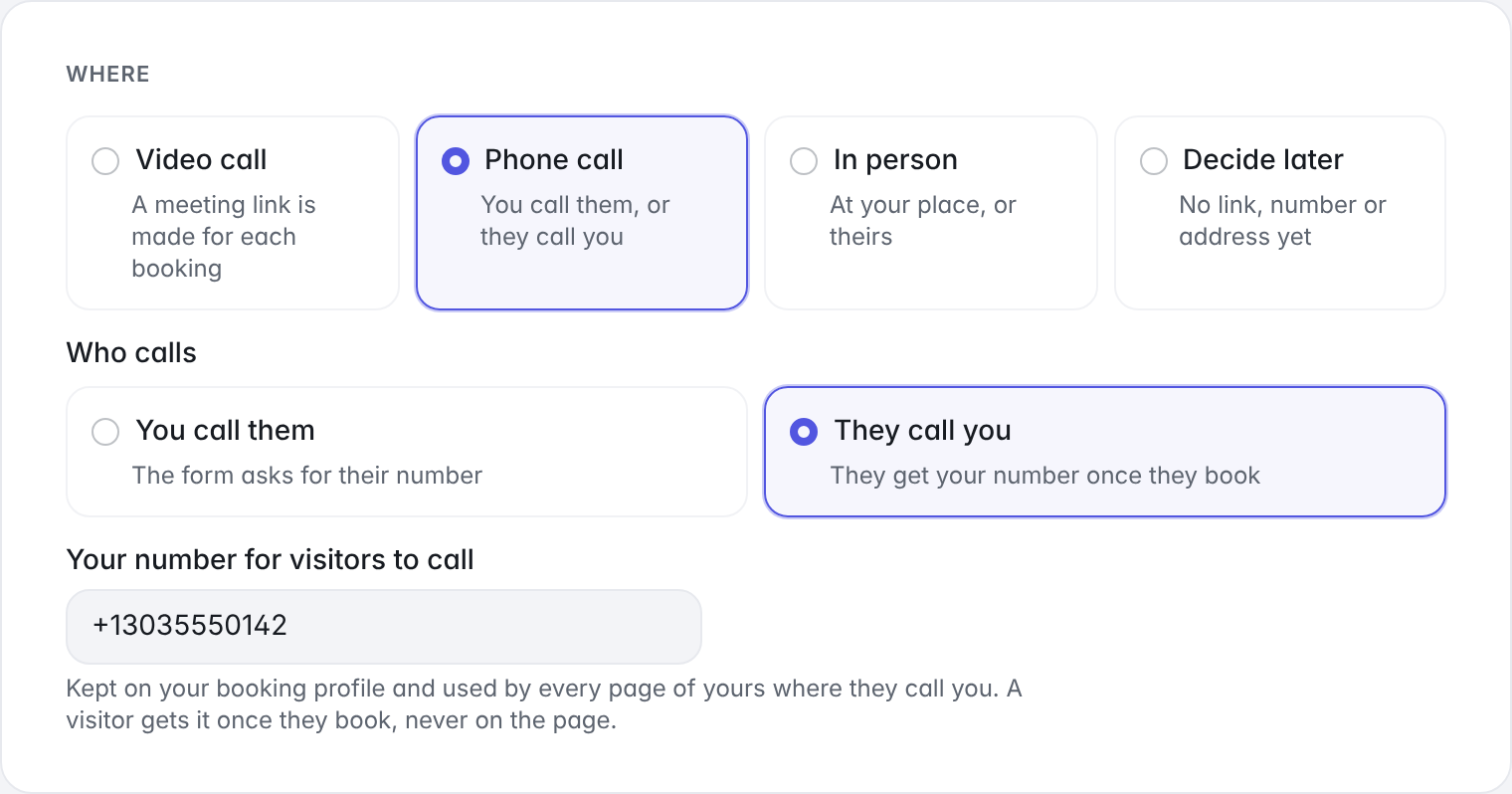
- Your number for visitors to call, for a phone-call page set to They call you. Type it as you would dial it; it is kept in international form, with your workspace's country code when you leave it out.
- Your address, for an in-person page set to At your place that gives no address of its own.
- Your video link: your own room on Zoom, Meet, Teams or another service, starting with
https://. It is used by your video-call pages while you have no Google or Microsoft calendar connected. A connected calendar makes its own link for each booking.
Each saves on its own: type, then press Save (or Enter). None of them is ever on a public page. A visitor gets it in their confirmation and their calendar event once they have booked. Each person sets their own; the audit log records that it changed, not the number or the address.
Where the meeting happens
Under Basics, Where decides how the meeting happens, what the visitor is asked for, and what they are given once they book.
| Where | Then choose | The visitor is asked for | The meeting, the calendar event and the confirmation say |
|---|---|---|---|
| Video call | Nothing more | Nothing | The meeting link: the one your Google or Microsoft calendar makes, or your own when no calendar is connected |
| Phone call | You call them | Their phone number, required | That the host calls them, and on which number |
| Phone call | They call you | Nothing | The host's number to call |
| In person | At your place | Nothing | The page's Address for this page, or the host's own address when that is empty |
| In person | At their place | Their address, required | That the meeting is at their address |
| Decide later | Nothing more | Nothing | Nothing about where. You arrange it with them after they book. |
- A page made before this choice existed is unchanged: a phone-call page is You call them, an in-person page is At your place.
- They call you uses each host's own number, from Where your meetings happen on the Booking pages screen (see Your booking address). When you are the page's host, the builder shows the field right there. On a team page each person's own number is used. The page publishes once everyone it books has a number; until then Publish says who is missing one.
- The host's own number and address are not on the public page. The visitor sees them on the booked screen, in the confirmation email and in the calendar event. An address typed into Address for this page is on the public page, as before.
- On the Calendar page, the meeting's Where says it in your words: By phone: call them on …, By phone: they call you on …, or At their address: ….
- A visitor who opens the page from a personal link, and whose record already has an address, is not shown it. The form says Leave this empty to use the address we have for you, or type a different one.
- You can still ask for a phone number or an address on any page, as optional or required, under Form and questions.
Booking with no calendar connected
A booking page works when the person it books has no Google or Microsoft calendar connected. It books them on Karmaflow.ai's own calendar. This holds for a page with one host, for each member of a team page (Round robin, First available), for whoever is on duty on a Whoever is on duty page, and for the host and the colleagues of a page with people under Together with.
- What it offers: the host's hours, minus the meetings Karmaflow.ai already holds for them and any time another visitor is holding. That counts a meeting a colleague organised on their own Google or Microsoft calendar with this person on it, and a meeting Karmaflow.ai booked on this person's calendar before they disconnected it. It cannot see anything kept on another calendar, so a meeting in a calendar you have not connected does not block a time here. The builder says which calendar a page books on, under Availability → Which calendar, with Connect Google and Connect Microsoft 365 when you are the host.
- What the visitor gets: the confirmation email is the invitation. It attaches the meeting as a calendar file (
meeting.ics) to add to their calendar, and carries their own link to move or cancel. A move sends the file again with the new time; a cancellation sends one that takes the meeting off most calendars. The visitor's page does not say which calendar the meeting is kept on. - What you get: no outside calendar emails you, so Karmaflow.ai tells you each time a meeting is booked this way: a notification in the app and an email, with who booked, when, and a link to the meeting. Change how you hear of it in your notification preferences, on the row A meeting was booked on your calendar. To see these meetings in your own calendar app, use the private link under Calendar → ⋯ → Scheduling → Visibility → Your meetings in your phone's calendar.
- Moving and cancelling: on the Calendar page, Move and Cancel meeting work as on any meeting, and say before you confirm that the person who booked is emailed.
- A video call needs a link. Nothing makes one, so the page uses its own (Basics → Where → Video link for this page) or, when that is empty, the host's (Your video link, under Where your meetings happen). Without either, the page does not publish. A phone call, an in-person meeting and Decide later need no link.
- Team and on-duty pages: each booking goes to one person, so a person with nothing connected is booked exactly as a single host is, on Karmaflow.ai's own calendar, and is the one told. Availability → Which calendar lists each team member with the calendar they are booked on. A video-call team page needs a link for each person booked this way, or one link on the page for everyone; a person without either is not booked. For an on-duty page, Which calendar lists everyone on the roster in the next two weeks.
- A video-call on-duty page checks the whole roster. With no link on the page itself, Publish looks at everyone on the duty roster in the next two weeks and names each person who has no calendar connected and no video link of their own. Basics → Where lists the same people before you publish. There are three ways through: give the page a link (Video link for this page), have each of them add Your video link under Where your meetings happen, or turn on the setting below.
- If the person on duty has no video link, offer a phone call instead (in Basics → Where, off unless you turn it on). With it on, a time that falls to such a person is offered as a phone call. The visitor's page marks those times as a phone call, not video, asks for the number to call them on, and says so again on the form. The person on duty calls them. The booked screen, the confirmation email and the calendar file all say it is a phone call, and the number goes on their contact record as any number given on a booking page does. A person on duty who has a link, or a connected calendar, is still booked for video.
- With that setting off, such a person's shift offers no times at all, so a visitor never picks a time that then cannot be booked. If a page is already live when a person with no link goes on the roster, two people are told. Whoever saves the shift reads it on the Duty Schedule screen as they save: who has no link, which page offers no times while they are on duty, and the three ways to fix it. (A shift made by the Duty Schedule's AI assistant is checked the same way, and the assistant is given the warning to pass on.) The page's host gets a notification in the app and by email, A booking page offers no times for someone on duty, naming the person, the page and the shift, with a link that opens the page (not when the host is the one saving the shift: they have just read it). Change how you hear of it in your notification preferences.
- A paid page never charges for a time that changed. On a paid on-duty page with that setting on, if a time shown as a video call has become a phone call by the moment it is taken (or the other way round), the visitor reads This time changed before it could be held. Choose again. and is returned to the times. Nothing is held and nothing is charged.
- Together with pages: a time is offered only when everyone is free, and a person with nothing connected counts as free by their hours, minus the meetings Karmaflow.ai holds with them on it. The meeting is kept on the host's calendar. When the host has nothing connected, that is Karmaflow.ai's own calendar, and Karmaflow.ai tells each colleague. A video call then uses the page's link or the host's.
- A colleague's own calendar gets the meeting too. On such a meeting, each colleague with Google or Microsoft 365 connected has it added to their own calendar, using the connection they already made. It has no guests, so nobody is emailed from their calendar. It moves with the meeting and is removed when the meeting is cancelled. Their notice says it was added. Open the meeting on the Calendar page to see In colleagues' calendars: each colleague with In their Google calendar or In their Microsoft 365 calendar, or the reason it could not be added or changed (for example an expired connection, or a connection that could not be checked at that moment). The booking stands either way. If a colleague disconnects their calendar later, the next move or cancel leaves the copy on it alone and says so there; they change it themselves.
Booking a meeting yourself with no calendar connected. The same holds for a meeting you book from the Calendar page with Book a meeting: with no Google or Microsoft calendar connected it is kept on Karmaflow.ai's own calendar, and the form says so before you book. The contact you book it with is emailed the invitation with a calendar file, and is emailed again if you move or cancel it (they reply to that email to change it; there is no link of their own, since no booking page is behind it). Other guests you type are not emailed for such a meeting, and the page tells you so once it is booked: send them the details yourself. Add a video call link uses Your video link; without one, nothing is booked and the form says where to add it. If whether you have a calendar connected could not be read, nothing is booked and you are asked to try again.
If you disconnect your calendar while a page is published, the page keeps taking bookings, on Karmaflow.ai's own calendar, from then on. The calendar you disconnected no longer blocks times and no longer receives the bookings. The meetings Karmaflow.ai booked on it before still hold their times; anything else on it no longer does. The Disconnect step says how many of your published pages this applies to before you confirm (the pages you alone host, the team pages you are on, on-duty pages while you are on the roster, and the Together with pages you host or are a colleague on), and each booking after it tells you it is on Karmaflow.ai's own calendar. A video-call page with no link of its own or of yours stops booking, and visitors read that it cannot book right now, until a link is added.
When you connect a calendar, the next booking goes to it. Meetings already booked on Karmaflow.ai's own calendar stay where they are and keep blocking their times.
Start from your website
Instead of filling in the brand and the words yourself, paste your website and Karmaflow.ai drafts them. You check every value before anything goes live.
What you'll need: for the whole business, Manage Helpdesk Settings (helpdesk:config:manage), the permission that edits your brand kit today. For Just me, nothing beyond your own sign-in. Customer questions become help-centre article drafts only with Manage Knowledge Base (helpdesk:kb:manage); what people book you for goes onto a booking page only with Manage Calendar Settings.
- Open your booking pages (Calendar → ⋯ → Scheduling → Booking pages → Open booking pages) and press Start from your website (or Refresh from your website in a page's Brand section). Both are shown to people who can manage booking pages; for Just me without that permission, go to
/calendar/booking-pages/brand-import?scope=me(sign-in required). - Under Your website, paste the address.
- Under This is for, choose The whole business (logo, accent colour, theme, fonts, corners, name, what people book you for, customer questions and your bio) or Just me (your photo, role and introduction; the brand stays as an admin set it).
- Press Draft my page. A list shows each step as it happens: opening the site, reading the brand, reading what you do, collecting customer questions, finding people, drafting the words.
- On the review, each value says where it came from, for example From the “Book now” button on yourbusiness.com. For each one choose Keep, Change or Skip. How it will look on the right shows the page as you decide.
- A value marked ◐ is a guess (a tab icon used as a logo, a colour taken from it); one marked ○ was not found. For What do people book you for?, press Write it and add one sentence.
- If your help portal is turned on, leave Apply this style to your booking pages and your help portal on to apply the brand. The two share one brand, so with it off your brand stays as it is on both and only the words are saved. Without a help portal the switch is not shown and the style dresses your booking pages.
- Press Save draft for pages and portal (or Save draft for booking pages). Nothing changes yet.
- Press Publish now when you are ready. The page then lists what changed, row by row, and the change is in the audit log.
What it reads, and what it does not. It reads up to five public pages of your own site, follows your site's robots.txt, and stops after a minute. It never reads social profiles: Instagram, Facebook and the like sit behind a login and their terms do not allow it, so for those you upload your logo and write one sentence instead. The text on your site is treated as information only; it cannot change what Karmaflow.ai does.
Where each value goes when you publish:
| Value | Goes to |
|---|---|
| Logo, accent colour, business name | Your brand kit (help portal and booking pages). The logo is copied, not linked to your site. |
| Theme, fonts, corners | Your brand kit's appearance. Fonts become the nearest built-in style (Sans, Serif, Grotesque, Rounded or Mono), so visitors never load fonts from another site. |
| What people book you for | The description of your first booking page, or a new unpublished page if you have none. |
| Customer questions | Help-centre article drafts. Publish them from the knowledge base when you have checked them. |
| Your bio, photo, role | Your own profile under How visitors see you. Only you can publish your own. |
A skipped value keeps what you have now. The accent colour is checked for contrast: where white text would not read on it, buttons get near-black text, and links use a darker shade.
Personal links
A personal link recognises one contact on one page: they skip the form and see the longer window. Agents send one when they offer the page in a conversation; you can also make one by hand.
From an agent. Turn on calendar-booking-page-link in the agent's tool list (chat, SMS, email, task and voice agents). When the person would rather pick a time themselves, or none of the offered times suit them, the agent sends the host's published page:
- To a person the conversation knows, it is their personal link. A meeting booked through it is linked to that chat, call, text thread, email or run, so the meeting shows where it came from.
- To a chat visitor not known yet, it is the page's own address, where they type their name and email.
- On a call, the agent sends the link by text or email; it never reads the address aloud.
- When the host has more than one page, the agent asks which kind of meeting the person wants.
The agent sends only the page of the person it acts for (the agent's creator, or someone in its delegation list), only when it is published, and only to the person it is talking to.
By hand.
- Open a published page and go to Recognized visitors.
- Under A personal link for one contact, find the contact.
- Press Make a link for them.
- Copy the link and send it.
A link lasts what the page's Personal links last says: 7, 14 or 30 days (14 unless you change it), long enough to come back and move the meeting. After that it opens as a new visitor's page.
Show what they told us on the page decides whether the page says who they are and what they said in the conversation (the From yesterday's chat card, read once per conversation by an AI model and kept on it). Turn it off for a clinic: what someone says in a chat can be health information. Off, they are still recognised (no form, the longer window); the page just does not say who they are. A phone number, a full email, a house number, an access code or an amount is never shown, whatever this says.
Making a personal link needs Book, Move & Cancel Meetings (calendar:events:manage).
Needs attention
Below your pages, a Needs attention card appears when customers have asked about something no help article answers, from your help desk's conversations: 9 customers asked about "Financing" and no help article answers it. Write a help article opens the help desk's suggestions. Booking pages answer visitors' questions from the same articles, so one article helps both. It shows only when the Helpdesk module is on, to someone who can read its knowledge base.
Where the answers and the meeting go
- The meeting is on the host's calendar and on the Calendar page, with the booking page as its origin.
- A new visitor becomes a contact, matched by their email. When that email is new to you, the contact is created from the booking and the phone number they type is saved on it, so their later call or text finds the same record. When the email is already on a contact, the number is kept as a note instead, not saved as theirs: anyone can type anyone's email on a public page.
- When the visitor reached the page from an ad or a tagged link, the click and campaign it carried (the Google Ads click id and the
utm_tags) are saved on the contact as its ad source. A contact that already has an ad source keeps the first one. - A visitor with a personal link is that contact. An email or a phone number they type is saved on their record only where the record has none; it never replaces one already there.
- Answers to your questions are a note on the contact. They are never put in the calendar invitation.
- Company, Address and Message, when the page asks them, are a note on the contact too, as typed, never saved over the record. One exception: an address typed by a visitor whose record it is (a personal link's contact, or a contact this booking created) is saved on the record when the record has none. It is on the meeting either way.
- On a phone-call page where the host calls, the number the visitor gave is on the meeting and in the calendar event, so the host has it at the time. A visitor who is recognised from a personal link sees the form when the page asks any of them, instead of booking on the tap.
Troubleshooting
Publish says I need a privacy link. Add your privacy policy link or publish a notice under Helpdesk Settings → Customer portal → Privacy, then publish again.
Publish says a video call needs a link. The host has no Google or Microsoft calendar connected, so nothing makes a meeting link. On a Whoever is on duty page it names the people on the roster in the next two weeks who have none; besides adding a link you can turn on If the person on duty has no video link, offer a phone call instead under Basics → Where. Add the page's own under Basics → Where → Video link for this page, or the host adds theirs on the Booking pages screen under Where your meetings happen, or choose Phone call, In person or Decide later.
Publish says whether the host has a calendar connected could not be read. Karmaflow.ai could not check just now, and does not guess. Try again in a minute.
The page shows no times. Check the host's hours (Calendar → ⋯ → Scheduling → Your hours), the workspace's bookable hours, the Minimum notice, the window and Days off. Under Connected calendars, check which calendars are selected to block times and whether any saved selection is unavailable.
The preview is not showing my change. It shows the saved page: press Save. If it says the preview has expired, close and reopen the page in the builder.
Publish says Stripe is not connected. The page asks for payment. Connect Stripe under Settings → Integrations → Stripe (paid bookings), or turn off Charge for this call.
Connecting Stripe says a permission is missing. Edit the restricted key in Stripe, tick the permission the message names, and press Connect again.
Refund says Stripe is not connected. Connect it again under Settings → Integrations → Stripe (paid bookings), or refund the payment in your Stripe dashboard.
A visitor paid but has no invitation. Look for the meeting on the Calendar. If it is not there, the host got a notice saying the time could not be booked and whether the payment was refunded; if the refund failed, refund it in Stripe.
Start from your website found very little. The site may be mostly pictures, may ask robots not to read it, or may be a social profile. Press Try another page to paste a fuller page (an about or team page works well), or upload your logo and write the sentence yourself.
The whole business option is greyed out. It needs Manage Helpdesk Settings. Choose Just me to draft your own profile, or ask an admin.
A visitor says the time was taken. Someone else held or booked it a moment earlier. The page shows the remaining times again.
Related
- Customer Portal: your privacy link and brand kit
- Communication Consent and Opt-Outs
Which websites may show your booking pages
A booking page's embed code works only on the websites your workspace allows. On any other site the page shows a blank box, so nobody can wrap your page in a site made to trick a visitor into booking or ticking a box.
What you'll need: to be a tenant admin. Everyone else sees the setting and which sites it lists.
- Open your booking pages (Calendar → ⋯ → Scheduling → Booking pages → Open booking pages) and scroll to Sites that may show your booking pages.
- Choose one:
- Only these sites (the default): your pages show inside the sites listed, and on their own address.
- Any site: any website can show your pages.
- Only Karmaflow: your pages show only on their own address, and an embed shows a blank box.
- With Only these sites, list one site per line, like
https://www.yourbusiness.com.www.yourbusiness.comandyourbusiness.comare different sites, so list both if you use both. - Press Save. Websites see the change within about a minute.
Until a tenant admin saves the list, it is filled in from the sites your workspace already uses: your Web Analytics sites and your chat agents' allowed origins, each shown with where it came from. Karmaflow itself (the builder's preview) and each page's own address are always allowed. The Share and embed section of each page says where its embed will show.