# Turning training on and managing access
Training is off in a new workspace. Nobody sees a thumbs-up, a comment chip or
a **Train** button until an admin turns it on — one checkbox, and the controls
appear for everyone immediately, with no need to sign out and back in.
This guide is the admin side of the loop: switching it on, understanding
exactly what switching it *off* does, giving your team access to the review
surfaces, and shaping how the Curator interprets what people write. If you are
here to leave a correction rather than to configure the feature, read
**[Your first correction, step by step](/help/knowledge/training-first-correction)**
instead.
## Two independent gates
Almost every "why can't they see it?" question here comes from confusing two
separate controls. They are not the same setting and they do not substitute
for each other:
```mermaid
flowchart TD
A["Can this person train an agent?"] --> B{"Workspace switch:
Agent Feedback & Training"}
B -->|Off| C["Nobody sees any controls.
Not a permission problem."]
B -->|On| D["👍 👎 and comment chips appear
for EVERY signed-in person"]
D --> E["Train the AI shows what THEY taught
— no permission needed"]
D --> F{"Role permission:
quality:events:read"}
F -->|Missing| G["Quality Events refuses to open.
Fix the ROLE, not the switch."]
F -->|Held| H["Training threads opens —
the whole team's corrections, read-only"]
H --> I{"Role permission:
quality:events:manage"}
I -->|Held| J["Can also resolve OTHER people's threads,
promote, dismiss, mute topics"]
```
The switch is workspace-wide and is what this page turns on. The two
permissions are per-role and live in **Roles & Permissions**.
## What you'll need
- **Tenant admin** on the workspace. The settings pages below are admin-only;
everything under *Give your team the team view* also needs the ability to
edit roles.
- Nothing else. Training needs no sending domain, no phone number, and no
connected model of your own — it runs on the agents you already have.
## Turn training on
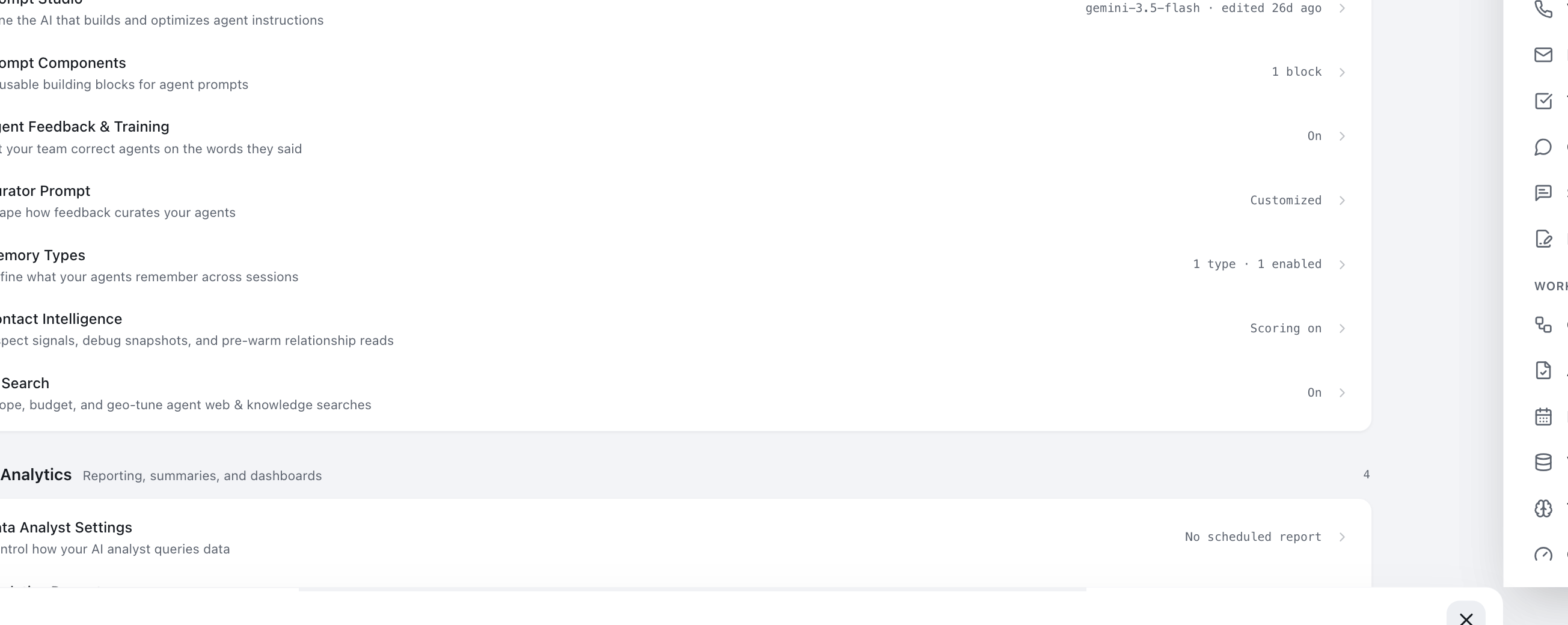
**Path: top bar → Settings → Agents & AI → Agent Feedback & Training**
The navigation is a bar across the top of the app; there is no sidebar. Under
**Agents & AI** you will find eight settings — the one you want is *Agent
Feedback & Training*, described as "Let your team correct agents on the words
they said".
1. Open **Agent Feedback & Training**.
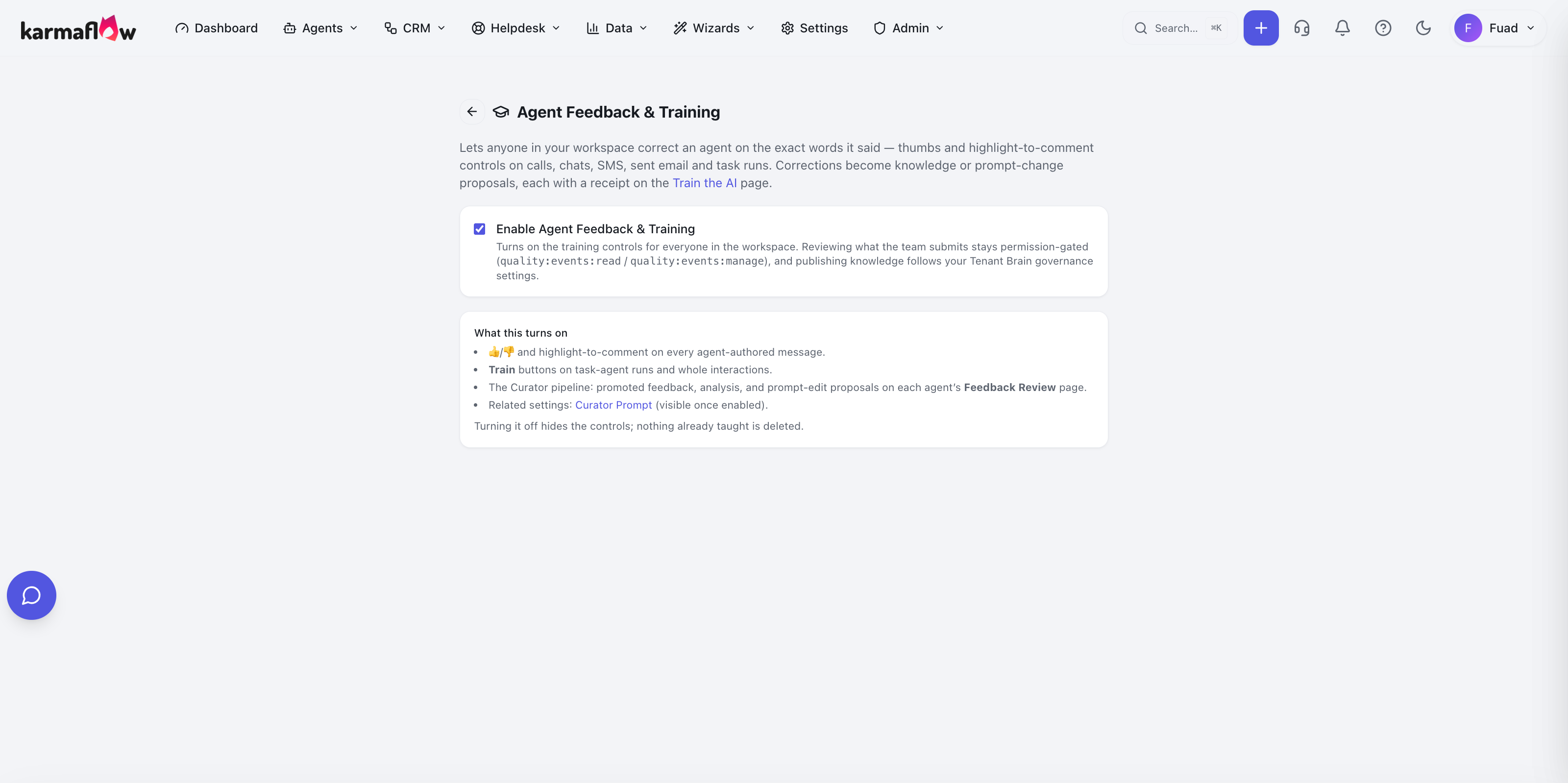
2. Tick **Enable Agent Feedback & Training**.
3. Wait for the confirmation line. When it turns on it reads, in full:
*"Training is on. Thumbs and comment controls now show on agent
conversations, and corrections flow to Train the AI and Quality Events."*
That is the whole task. The controls appear for every signed-in person
straight away — the page refreshes your workspace's settings for you, so
nobody has to sign out and in again.
### Confirming it is on
Two places tell you, and they should agree:
- The settings list shows a status of **On** beside *Agent Feedback &
Training* (visible in the first screenshot above).
- The checkbox on the page itself is ticked.
If the page shows an error such as *"Failed to fetch agent feedback setting"*,
the control is disabled and offers **Retry**. That is deliberate: a failed read
must not render as an unticked box, because you could then save a value you had
never actually seen. Click **Retry** rather than ticking anything.
## What "off" actually does
Turning training off is safe and reversible, but it is worth knowing precisely
what it does — the confirmation line is deliberately specific:
> *"Training is off. The training controls are hidden; existing threads and
> quality events are kept."*
| Turning training off | Effect |
|---|---|
| 👍 / 👎 on agent messages | **Hidden**, on every surface — calls, chat, SMS, email, task runs |
| The highlight-to-comment chip | **Hidden** |
| The **Train** button on a conversation | **Hidden** |
| Threads your team already submitted | **Kept, and still readable** on Train the AI |
| Knowledge already published from corrections | **Kept** — nothing is unpublished or deleted |
| Quality events already recorded | **Kept** |
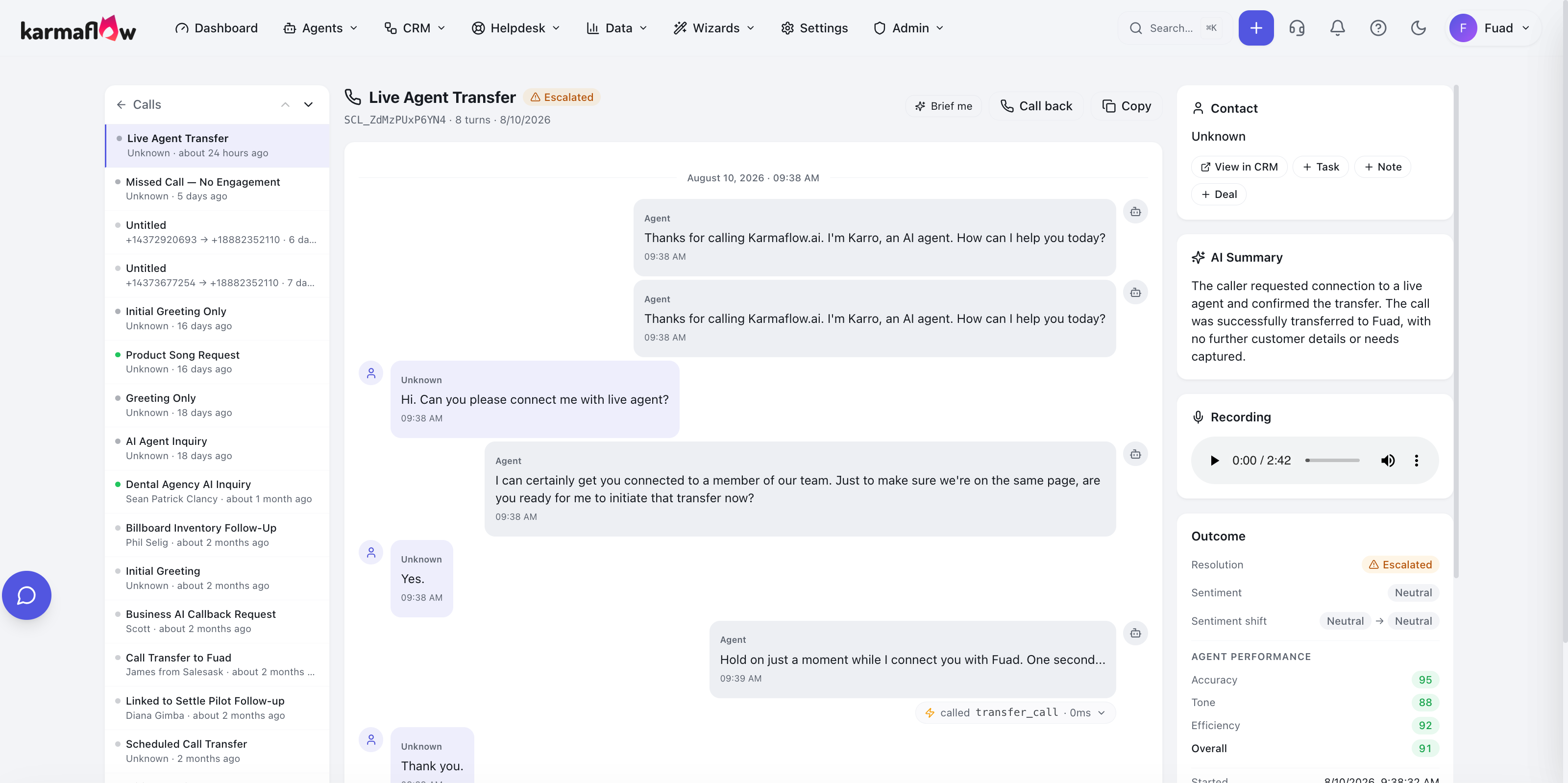
So switching off stops **new** corrections being captured. It does not erase
what your team has already taught, and turning it back on restores every
control exactly as it was.
> **It applies workspace-wide and immediately.** There is no per-agent or
> per-team override. If you switch it off while colleagues have conversations
> open, their controls disappear on the next page load.
## Give your team the team view
This is the step most workspaces miss, and the symptom is specific: a
colleague opens **Quality Events** and gets a full-page
> **You don't have access to this page**
> Your role doesn't include it. A workspace admin can grant access — it's a
> per-role setting…
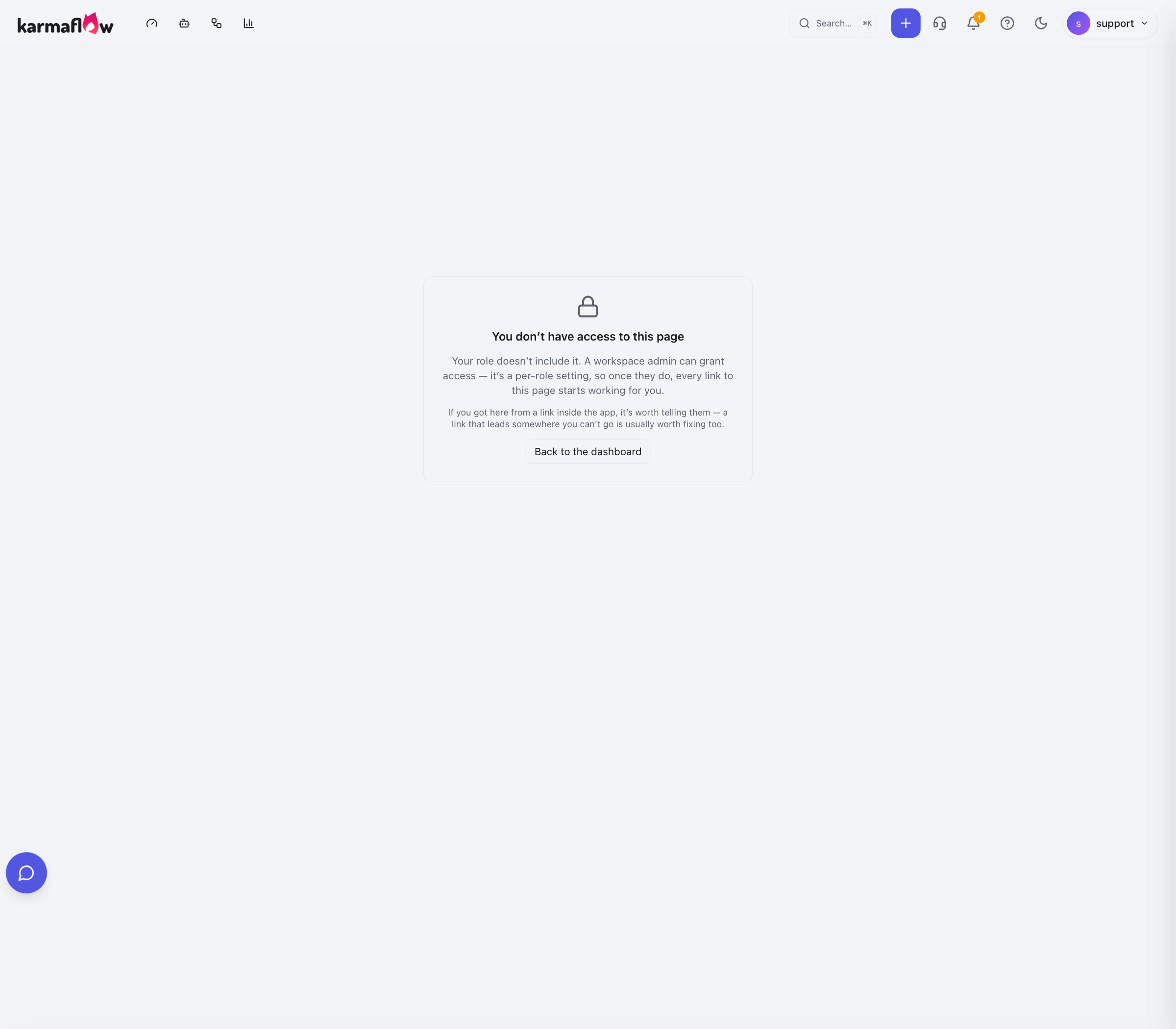
**That message is accurate, and it is a role setting, not the training switch.**
Turning training on does not by itself let people see what the *team* has
submitted. Two different things are involved:
| Surface | What it shows | What it needs |
|---|---|---|
| **Train the AI** (`Agents → Workflows → Train the AI`) | Only what **you** submitted, and what became of it | Nothing — every signed-in person can open it |
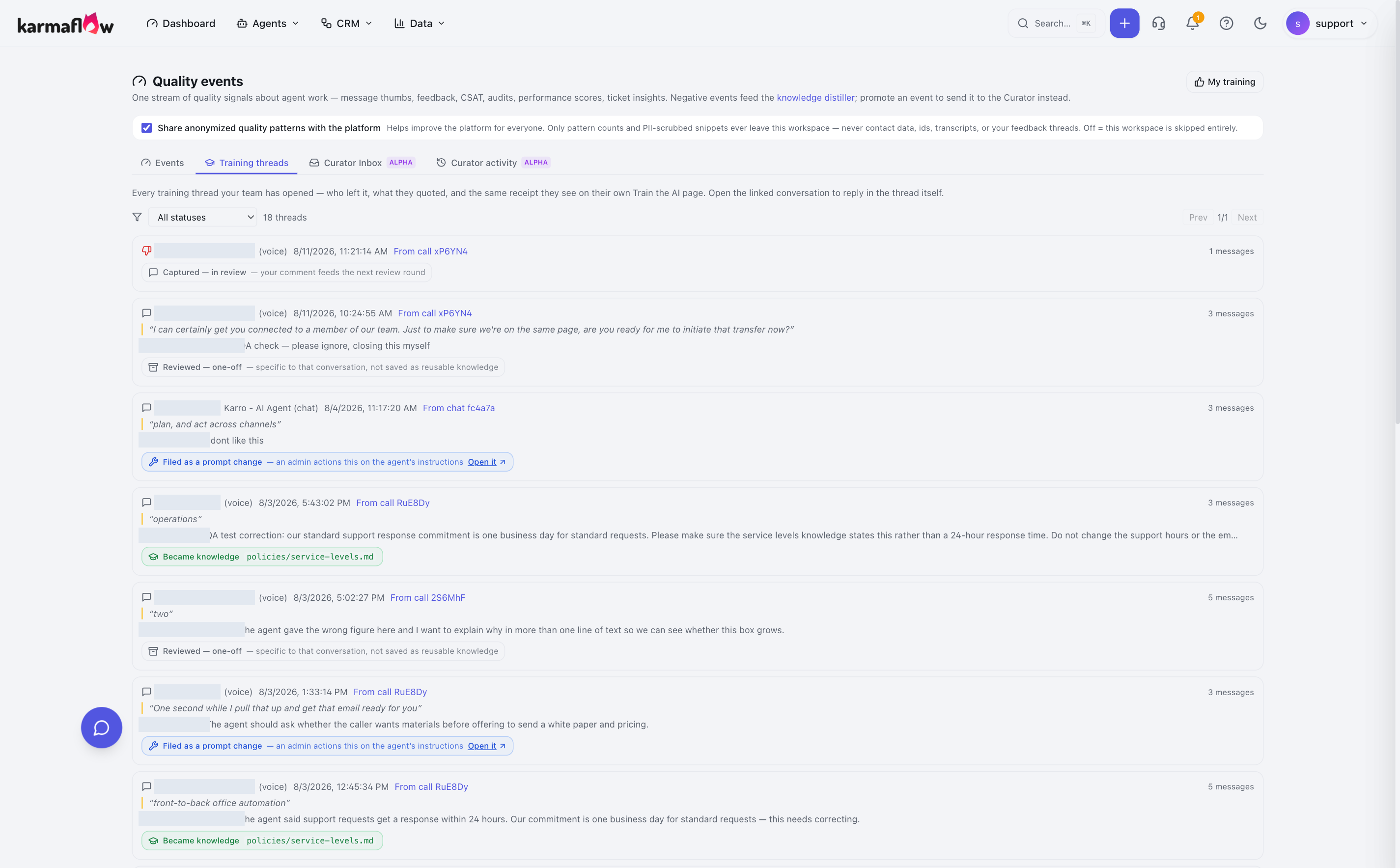
| **Quality Events → Training threads** | What **everybody** submitted | `quality:events:read` |
| **Mark resolved / Reopen** on someone else's thread | Closing a colleague's thread | `quality:events:manage` |
### Why a long-standing workspace may be missing it
The Member, Viewer and Manager role templates all include
`quality:events:read`. But default roles are created **once**, when the
workspace is created, and are never rewritten afterwards. A workspace that
existed before this permission was introduced therefore has roles that predate
it — the template says one thing, the role in your workspace says another.
**Check before assuming.** It takes a few seconds.
**Path: top bar → Settings → Roles & Permissions**
1. Find the role in the list — **Member** is the default one most people hold.
2. Click the pencil icon to edit it.
3. Scroll to the **QUALITY** section.
4. Look at **View Quality Events** (`quality:events:read`).
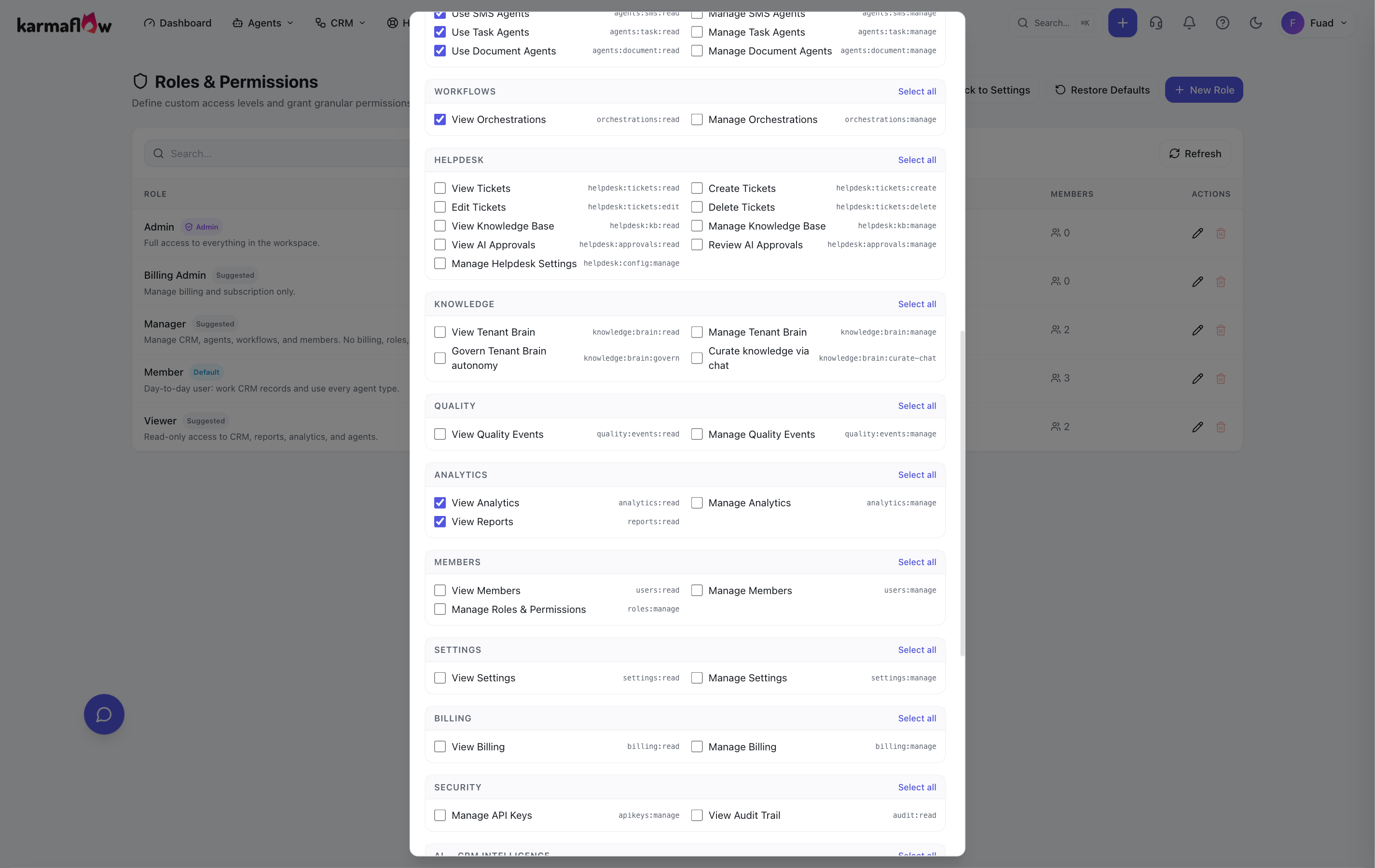
If it is unticked, that is your answer. Tick **View Quality Events** and click
**Save Changes**.
> **Grant read, not manage.** `quality:events:manage` also lets someone resolve
> other people's threads, promote and dismiss events, mute topics and change
> the anonymised-sharing setting. Most teams want everyone to *see* the team's
> corrections and only reviewers to *act* on them, which is read without
> manage.
### What your team sees afterwards
Once the role carries `quality:events:read`, three things appear for those
people, immediately:
- **Quality Events** joins their **Agents → Workflows** menu.
- A **Team training** link appears in the header of their Train the AI page.
- The **Training threads** tab opens and lists everybody's corrections.
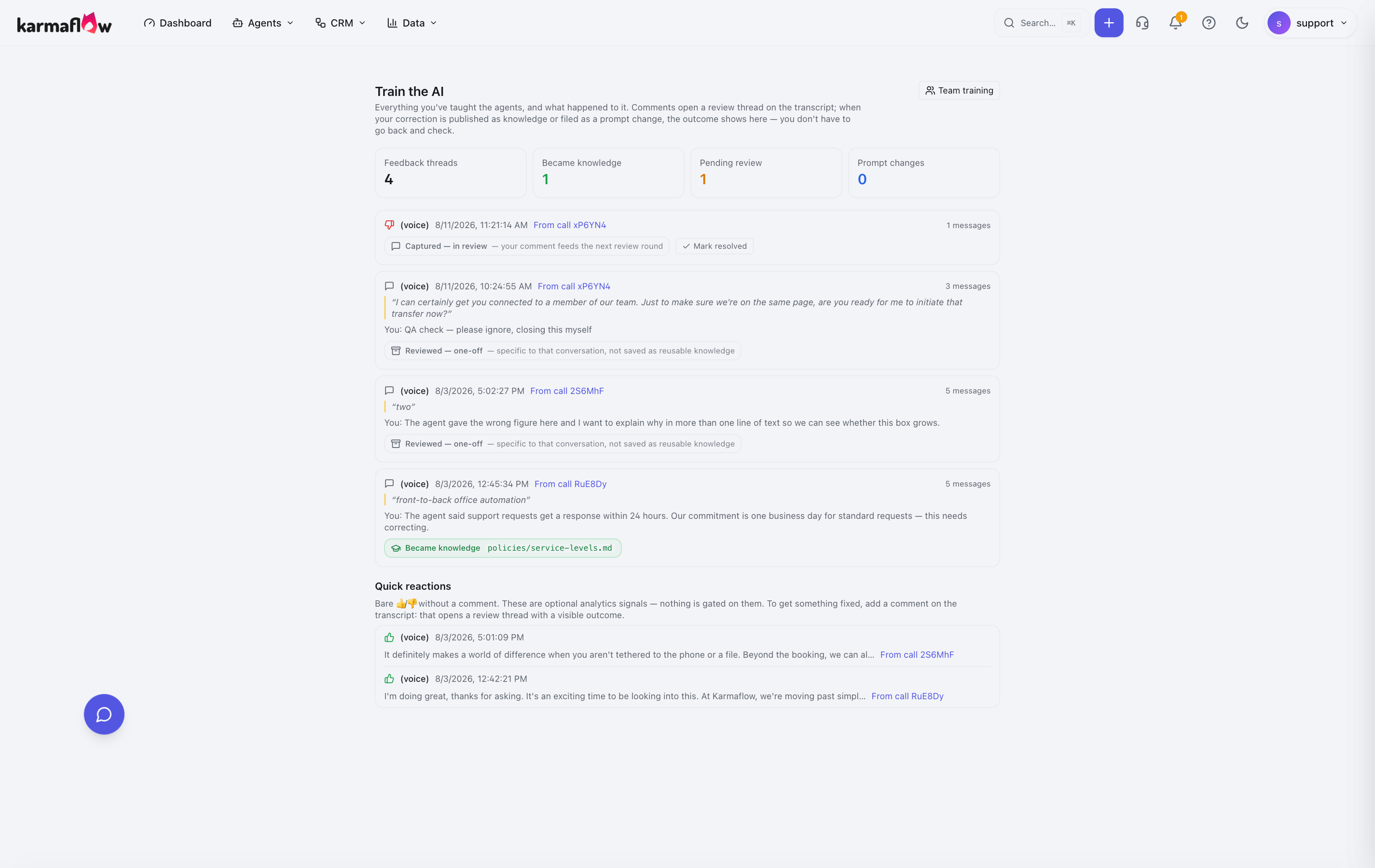
They still get **no Mark resolved or Reopen buttons anywhere on that page** —
not even on their own rows — because the team view is uniformly read-only
without `quality:events:manage`. They close their own threads from their own
Train the AI page instead.
## Shape how the Curator reads corrections
**Path: top bar → Settings → Agents & AI → Curator Prompt**
The Curator is the AI that reads each correction and decides whether it is a
durable business fact, a change to how an agent speaks, or a one-off detail.
This page is where you influence that judgement. It appears in the settings
list only once training is enabled.
The page gives you the model in use, its reasoning effort, and:
- **Load built-in default** — pull the shipped prompt into the editor as a
starting point.
- **Save prompt** — store your version. The list then shows *Customized*.
- **Clear override** — go back to the built-in prompt.
The built-in default is shown read-only alongside your version, so you can
always see what you have changed relative to it.
> **Change this sparingly.** The built-in prompt is what makes receipts
> consistent and keeps one-off details out of your knowledge base. A good
> reason to edit it is house vocabulary — telling the Curator what your
> business calls things. A bad reason is trying to force every correction to
> become knowledge; that is what fills a knowledge base with sentences that
> were only ever true once.
## Troubleshooting
**"Nobody can see any thumbs or comment chips."**
Training is off, or was switched off. Settings → Agents & AI → Agent Feedback &
Training, and check the status reads **On**.
**"A colleague gets 'You don't have access to this page' on Quality Events."**
A role permission, not the training switch. Follow *Give your team the team
view* above and check `quality:events:read` on their role.
**"Someone can see the Training threads tab but has no Mark resolved buttons."**
Working as intended. That page is read-only without `quality:events:manage`,
including on their own rows. They can resolve their own threads from **Agents
→ Workflows → Train the AI**.
**"A correction was filed as 'one-off' and I expected it to become knowledge."**
Also working as intended, and usually correct — see
**[What happened to your feedback](/help/knowledge/training-outcomes)**. If it
keeps happening on corrections that really are durable facts, that is a signal
to look at the Curator Prompt.
**"The Curator Prompt entry is missing from settings."**
It is only listed once training is enabled. Turn training on first.
## Next steps
- **[Reviewing what your team teaches](/help/knowledge/training-reviewing)** — the day-to-day reviewer workflow, and how much your agents may publish on their own.
- **[Quality Events and the Curator queue](/help/knowledge/training-curator)** — the full quality stream, topic muting, and approving a prompt change.
- **[Training your AI agents](/help/knowledge/training)** — the hub, including what your team sees in each role.
[Sign in to Karmaflow.ai](https://omni.karmaflow.ai/auth/login)