Conversation outcomes and custom GA4 events from workflows
The event map on the Google Analytics 4 page covers the common cases with one switch per trigger. When you want something more specific, a different event name for booked chats than for booked calls, a value on a qualified lead, an event only for one agent, you build it as a workflow: a trigger, an optional filter, and the Send GA4 Event step. This article covers that path, the trigger that makes it possible, and how the visitor's web identity is captured in the first place.
What You'll Need
- Orchestrations access (
orchestrations:readto open the builder; the tenant's usual edit rights to save). - A connected GA4 stream with sends on, see Connect Google Analytics 4. The step is skipped with a reason when GA4 is not connected.
- A conversation analytics prompt saved, so conversations are analyzed and carry an outcome type. Outcome types are whatever your prompt defines (Settings → Analytics → Analytics & Insights → Prompt).
The trigger: Conversation analyzed (outcome known)
When a chat, call, text or email conversation finishes processing, KarmaFlow emits one event with the outcome. In the builder it is under the trigger category Conversation outcome, named Conversation analyzed (outcome known) (key conversation.analyzed).
It fires once per conversation, on the first analysis. A later re-analysis of the same conversation does not fire it again, so a workflow bound to it cannot double-count, and neither can GA4.
The run carries these fields, shown as click-to-copy {{field}} chips under the step editors:
| Field | Meaning |
|---|---|
channel |
chat, call, sms or email |
outcomeType |
the outcome type from your analytics prompt, lowercase (for example booked, qualified, lost, escalated) |
sentiment |
the overall sentiment, lowercase |
billable |
1 or 0 |
agentId |
the agent that handled the conversation |
sessionId / callId |
the conversation's own id |
contactId |
the contact, when the conversation is linked to one |
The outcome detail, the written summary of what happened, is deliberately not on the event. It is model-written prose and would be a privacy risk in an analytics parameter.
Build the workflow
Agents → Workflows → Orchestrations → the create button
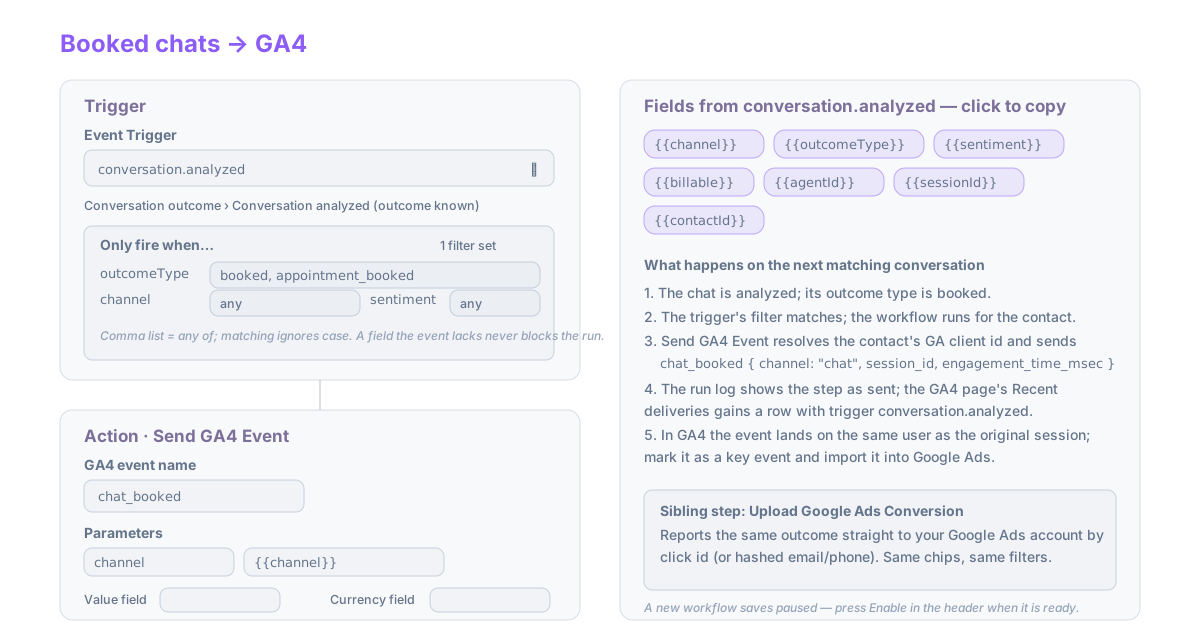
- Give the workflow a name.
- In the trigger step, open Event Trigger, search
analyzed, and pick Conversation analyzed (outcome known). - Under the picker, Only fire when… lists the filters this trigger supports. Type into
outcomeTypethe outcomes you want, as a comma list:booked, appointment_booked. A comma list means any of; matching ignores case. Leave a filter blank to ignore it. The caption reads 2 filters set or no filters — fires on every event. - Add Step → Send GA4 Event.
- Enter the GA4 event name, for example
chat_booked. Letters, digits and underscores, starting with a letter, at most 40 characters, not a name Google reserves. - Under Parameters, add a row per parameter you want. The value may be literal or a
{{field}}from the run; the chips under the label show which fields this trigger carries, click one to copy it. Emails, phone numbers, names and message text are removed before sending whatever you map. - Optionally set Value field and Currency field (a run field holding a number and a currency code). Without a currency field the connection's default currency applies.
- Save. A new workflow saves paused; the flash says so. Press Enable in the header when it is ready.
Expected result after the next matching conversation: a run appears under the workflow's run history with the step marked sent, and a row appears in Recent deliveries on the Google Analytics 4 page with the trigger conversation.analyzed, the event name you chose, and the identity used.
The step also puts ga4DeliveryStatus on the run, so a later branch can act on sent versus skipped_no_identity.
Using it with any other trigger
The same step works after any event trigger: a deal stage change, a ticket solved, a form submission, a campaign reply. Each trigger's {{field}} list appears under the editor as soon as the trigger is chosen, and the same Only fire when… filters apply. Two things to keep in mind:
- The step sends for the run's contact. A contactless event (some deal and webhook triggers) is skipped with the reason no contact in the run log.
- If the event map already sends an event for that trigger, both go out. Turn the map row off if you replace it with a workflow.
The native GA4 tag in Tag Manager
Events that happen in the browser belong in the browser. KarmaFlow's Tag Manager (Data → Web Analytics → Tag Manager) has a tag type GA4 event: give it a GA4 event name and parameters (each a literal value or a Tag Manager variable), attach a firing rule, and publish. On the page it calls the visitor's own gtag('event', …), so it uses their Google tag and their consent state. It needs the tag to be present; when it is not, nothing fires. See Tag Manager.
How the visitor is recognised
Every off-site event is sent under the visitor's GA client id, which is what lets GA4 credit it to the original session. The id is captured at an identification moment on your site while your Google tag and a KarmaFlow surface are both present:
- The chat widget. When a visitor opens a chat, the widget records the GA client id and session id, the click ids (
gclid,gbraid,wbraid) and UTM values from the page, and they are adopted onto the contact when the chat is linked to one. - Forms posting to a KarmaFlow form endpoint. The KarmaFlow tracker adds hidden fields (
kf_ga_client_id,kf_ga_session_id,kf_ga_measurement_id,kf_gclid,kf_gbraid,kf_wbraid,kf_utm_*,kf_landing_path,kf_referrer) to every form on the page; the form endpoint lifts them off the submission and onto the contact. They never become contact fields or notes. - The tracker's
identifycall, when your site tells KarmaFlow who the visitor is.
The tracker reads the ids from your Google tag using its documented gtag('get', …) call, so it needs the Measurement ID: publish the Tag Manager container once after connecting GA4, and it carries the id.
sequenceDiagram
  participant V as Visitor's browser
  participant G as Your Google tag
  participant K as KarmaFlow widget / tracker
  participant C as Contact record
  participant GA as GA4 property
  V->>G: page view (session_start carries gclid, source, campaign)
  K->>G: gtag('get', client_id / session_id)
  V->>K: chats, submits a form, or clicks a tracked link
  K->>C: client id, session id, click ids, UTM stored on the contact
  Note over C: days later: a call, a deal, an analyzed conversation
  C->>GA: Measurement Protocol event under the same client_id
  GA-->>GA: credited to the visitor within the lookback window
A contact who has never been through one of those moments has no web identity. Their events are listed as Not sent, no web identity until they do, or until you turn on the synthetic-id option in section 2 of the settings page.
Troubleshooting
The workflow never runs. Check three things in order: the workflow is Enabled (new ones save paused); the conversation was actually analyzed (it needs a saved analytics prompt and appears with an outcome on the conversation page); the filter matches (compare the outcome type shown on the conversation with what you typed; a blank filter matches everything).
The run shows the step as skipped_no_identity. The contact has no captured GA client id. See the section above; the synthetic-id option sends anyway, as a new unattributed user.
The step ran but the event is not in GA4 reports yet. Realtime shows it within a minute; standard reports take up to a day. A key event imported into Ads appears there after import, typically within a day.
Next steps
- Offline conversions to Google Ads: report the same outcome straight into Google Ads by click id
- Building workflows: the rest of the builder